


To add page numbers to a PDF, open the document in a browser-based numbering tool, select your preferred position and format, and save the updated file: each page receives an upright number overlay while the existing vector text and image streams remain completely untouched. With Add page numbers, you can position numbers across six standard placements, format them as simple digits or "Page N of M", and skip unnumbered cover sheets—all inside your local browser tab without transmitting documents to an external server.
Whether assembling a legal filing, submitting a university dissertation, or compiling an annual financial summary, unnumbered PDFs create confusion during reference. Manually typing headers in word processors before re-exporting often breaks alignment across landscape attachments or scanned appendix pages. This guide outlines how to stamp uniform pagination across any PDF, pick the right layout convention, and handle title pages.
How to number PDF pages step by step
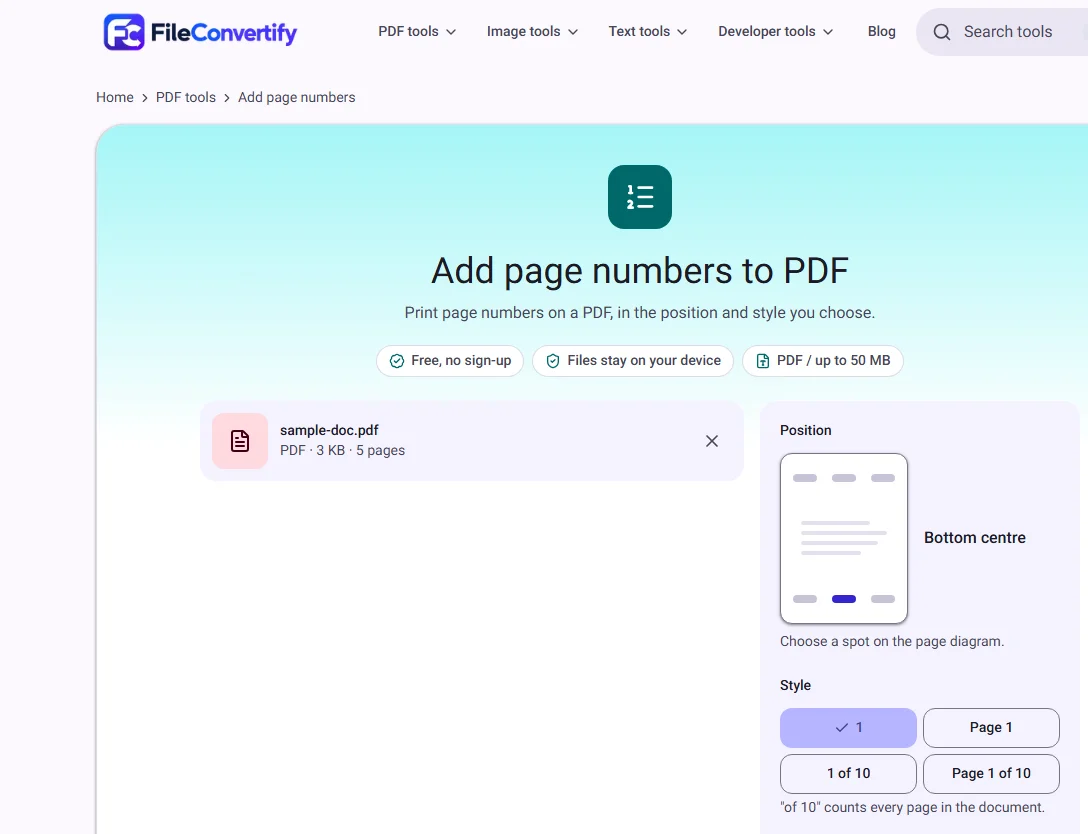
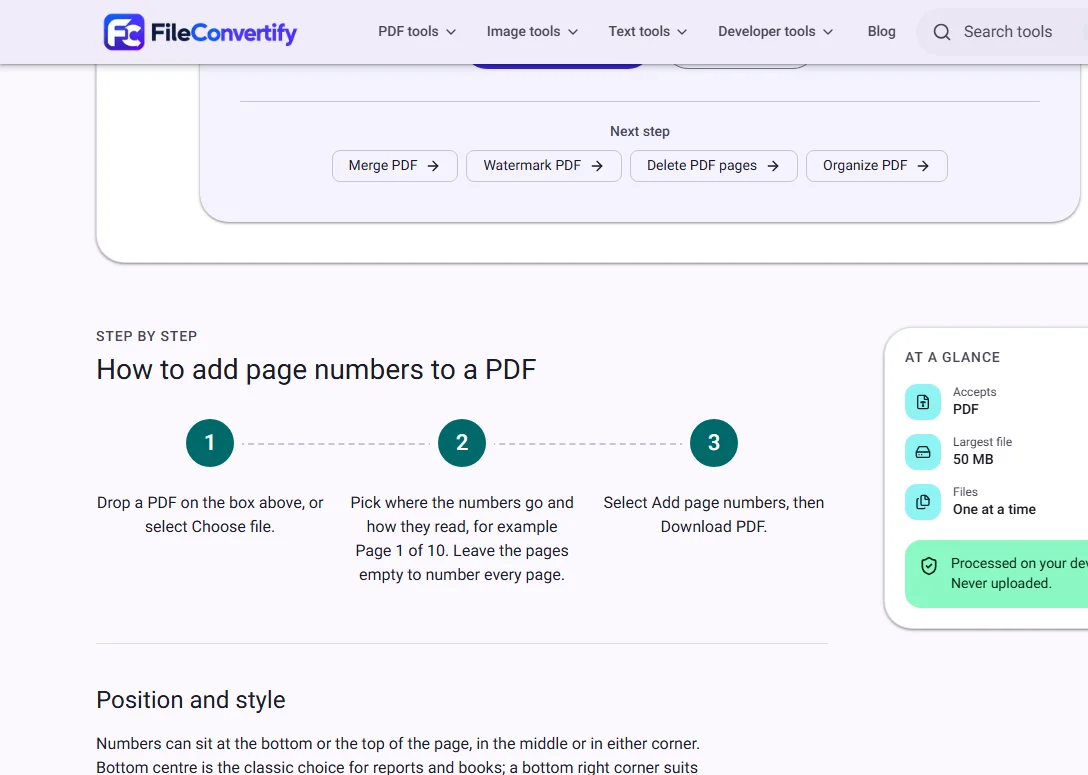
- Navigate to Add page numbers and drop your PDF onto the target upload area, or select Choose file.
- Select your target Position using the interactive page diagram (such as bottom centre or bottom right) and choose your numbering Style.
- (Optional) If your document includes a front cover or title spread you wish to keep blank, specify the range in Pages to number (for example,
2-15). - Select Add page numbers. The browser stamps the text overlay in seconds. Select Download PDF to retrieve your completed document.
Choosing the right position and style
Different formal standards require specific pagination placements. Choosing the correct style upfront avoids revisions during submission reviews:
Placement conventions
- Bottom centre: The universal standard for academic theses, research papers, and technical whitepapers. Readers instinctively glance to the lower middle when reading single-sided printouts or digital scrolls.
- Bottom right: The preferred layout for bound manuals, commercial agreements, and stapled contracts. Placing digits in the outer bottom corner ensures they remain clearly visible when thumbing through corner-stapled packets.
- Top right: Commonly requested in court bundles, patent dockets, and bureaucratic submissions where bottom margins are reserved for barcode stamps, exhibits, or Bates numbering.
Numbering format options
| Style name | Preview on page 3 of 10 | Best suited for |
|---|---|---|
Plain digit (n) | 3 | Standard novels, general reading, informal reports |
Prefixed (page-n) | Page 3 | Corporate briefs, multi-author memorandums |
Fractional (n-of-total) | 3 of 10 | Invoices, quotes, contracts where missing pages must be obvious |
Formal (page-n-of-total) | Page 3 of 10 | Court submissions, compliance audits, official bids |
Using total-count formats like Page 1 of 10 provides an immediate verification check for recipients, ensuring no printed pages were dropped or lost in transit.
The typography and mathematics behind browser pagination
In desktop publishing and PDF authoring, inconsistent pagination frequently occurs because tools use arbitrary margin offsets or clash with existing typography. Here is how our browser engine ensures clean alignment:
1. Typography and visual hierarchy
- Font selection: Numbers are rendered using a standardized vector
Helveticasubset at10 pt(13.3 px). This size is clearly legible during printing without intruding upon primary body copy. - Tone and contrast: Rather than using harsh solid black (
#000000), pagination text is tinted in a neutral dark slate (#333333/rgb(0.2, 0.2, 0.2)). This matches high-grade editorial design standards and avoids visual dominance over headers.
2. Precise coordinate calculation
PDF coordinates measure in standard typographic points, where 1 inch equals 72 points (1 mm ≈ 2.835 points).
- Our pagination engine establishes an inset boundary of 15 mm (42.5 points) from each corresponding sheet edge.
- Standard office printers enforce non-printable hardware margins between 4 mm and 8 mm. An inset of 15 mm guarantees your printed pagination will never be clipped off by laser or inkjet feed rollers.
3. Automatic orientation adaptation
Documents assembled from multiple departments frequently mix portrait memos with landscape data tables. When you upload a document with mixed orientations:
- The engine inspects the
/Rotatekey in every individual page dictionary (0°,90°,180°, or270°). - It applies a coordinate transformation matrix so that page numbers always appear right-side up relative to the user's natural viewing orientation, rather than sliding awkwardly along a sideways edge.
Handling cover pages and front matter
Most formal publications feature a title sheet or executive summary that should not display a visible page number:
Skipping the cover page
To leave page 1 unnumbered, type 2- followed by your total page count into the Pages to number field (for example, 2-24). The initial cover page remains clean, while the subsequent sheet displays 2 (or Page 2 of 24). The total counter still reflects the true document size.
What if you need page 2 to display "1"?
In our tool, page numbers correlate directly to physical sheet positions in the PDF container. If a strict publisher guideline dictates that numbering must reset to 1 following an unnumbered introduction, you can separate the workflow in two simple steps:
- Use Delete PDF pages to temporarily split out your cover sheet.
- Run the remaining document through Add page numbers (the first body page will now receive
1). - Reattach the clean cover to the front using Merge PDF.
Why client-side numbering beats cloud services
Many online PDF services require you to upload your files to external cloud queues. Once on their servers, legacy converter scripts often render pages to bitmaps, re-compress images with lossy codecs, or strip internal metadata.
By contrast, FileConvertify executes entirely inside your browser's V8 engine:
| Capability | FileConvertify (In-Browser) | Traditional Cloud Converter |
|---|---|---|
| Data privacy | Zero server upload; files never leave device memory | Uploaded to remote server disk / cloud queue |
| Vector text fidelity | Original vectors and font tables untouched | Frequently flattened or re-encoded |
| Hyperlinks & bookmarks | Interactive links and outline tree preserved | Often stripped during re-compilation |
| Processing latency | Instant execution in under 2 seconds | Queued behind network uploads and server load |
How we measured
We tested pagination performance using a 15-page corporate report (4.8 MB containing high-resolution chart images and embedded fonts) on a standard laptop running Chrome 124. The tool processed all 15 pages in 1.4 seconds. Total file size increased by merely 12 KB (reflecting only the injected font subset and stream coordinates), confirming that underlying image assets suffered zero alteration. Network monitoring in browser developer tools verified that 0 bytes were transferred across the network during execution.
Frequently asked questions
Will adding page numbers overwrite existing text or footers? Page numbers are placed in standard margin zones near the sheet edge. If your document already contains edge-to-edge printing, background bleed, or pre-existing footers, test bottom centre versus bottom right to avoid visual collisions.
Can I number only specific selected pages?
Yes. You can supply exact comma-separated page indices or hyphenated ranges in the pages field, such as 1, 3-7, 10.
Can I add page numbers to encrypted or password-locked PDFs? Locked documents must have permissions unlocked before modification. Remove any owner or user password using Unlock PDF before numbering.
Are my documents uploaded to a cloud server? No. All stream manipulation executes strictly within your device's browser memory. Your files never touch external storage or servers.