

Image to PDF
Combine up to five JPG, PNG or WebP images into one PDF, one image per page.
- Free, no sign-up
- Files stay on your device
- JPG, PNG or WebP / up to 25 MB
Step by step
How to convert images to PDF
Step 1: Drop your images on the box above, or select Choose files. Add more images until the list is complete.
Step 2: Drag the images, or use the arrow buttons, to set the page order, then choose portrait or landscape pages.
Step 3: Select Create PDF, then Download PDF to save the document.
Worked example
Two photos into one PDF
We combined two full-size JPG photos, a 2.9 MB landscape and a 5.4 MB close-up, on portrait pages. The PDF had two pages and was 8.3 MB, about the size of the two photos together.
The JPG photos were placed as they are: nothing was compressed again, so nothing was saved either. For an email limit, resize the photos first, or run the PDF through Compress PDF, which brought this one to 404.8 KB.
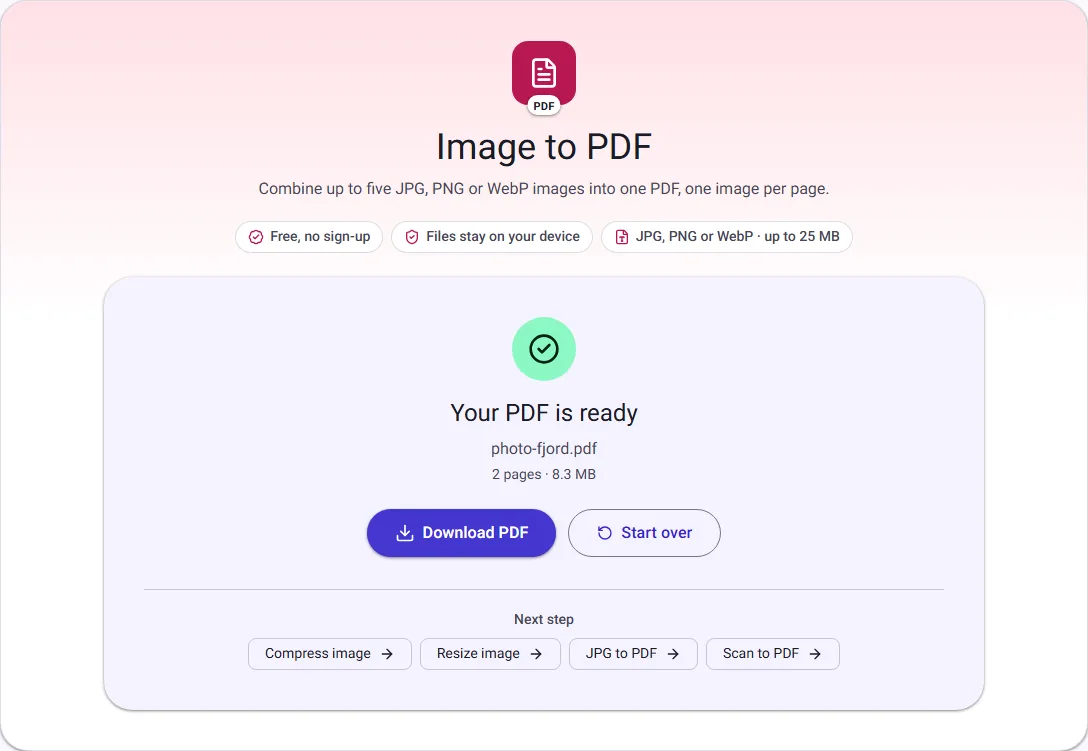
We ran this ourselves on 17 October 2026 with public-domain sample files. Your sizes will differ with your own files. The full walk-through is in How to Combine Photos into One PDF (In the Right Order).
How the pages are laid out
Each image becomes one A4 page, in the order shown in the list. The image is scaled to fit inside a half-inch margin and centred, keeping its proportions, so nothing is cropped or stretched. Portrait or landscape applies to every page in the PDF; choose landscape when most of your images are wider than they are tall.
Transparent areas in PNG and WebP images show the white page behind them.
Image quality in the PDF
Most JPG photos are placed in the PDF exactly as they are, with no second round of compression. PNG images, and any image with transparency, are stored as PNG inside the PDF, so no JPG compression is added. Photos that need turning upright, CMYK JPGs and other WebP images are converted first, at a high JPG quality.
Because the photos keep their full resolution, the PDF can be about as large as all the images together. If you need a smaller PDF, resize or compress the images first.
Good uses
Put scanned or photographed pages of a form, receipts for an expense claim, or several screenshots into a single file that is easy to email, print or upload. PDFs keep the page order fixed and open the same way on every device.