

JPG to WebP
Turn a JPG or JPEG photo into a WebP file, usually smaller at similar quality.
- Free, no sign-up
- Files stay on your device
- JPG, PNG or WebP / up to 25 MB
Step by step
How to convert JPG to WebP
Step 1: Drop a JPG or JPEG photo on the box above, or select Choose file.
Step 2: Set WebP quality, or keep the default of 80.
Step 3: Select Convert to WebP, then Download WebP to save it.
Worked example
A full-size photo at quality 80
We converted a 3882 × 2912 pixel JPG photo of 2.9 MB at the default quality of 80. The WebP was 1.1 MB, with the same dimensions.
After resizing to 1600 pixels the gap was smaller: our landscape photo at quality 60 was smaller as a JPG than as a WebP. Compare both before you switch a whole site.
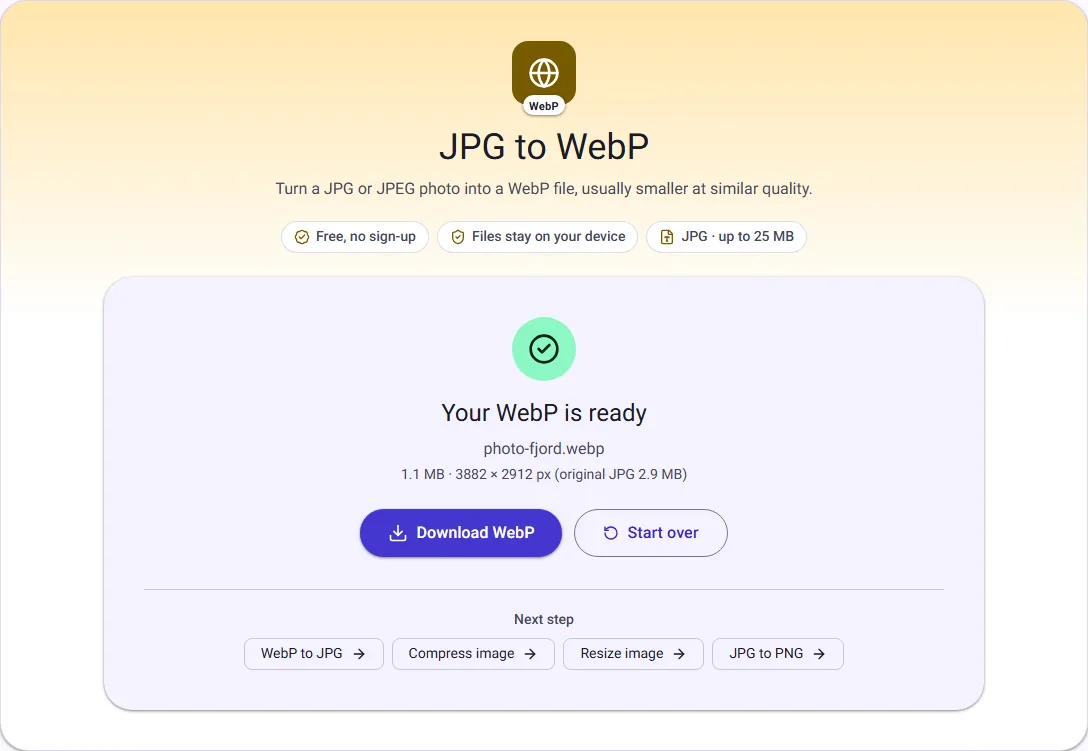
We ran this ourselves on 17 October 2026 with public-domain sample files. Your sizes will differ with your own files. The full walk-through is in Should You Use WebP Images on Your Website?.
Smaller photos for your website
WebP usually stores a photo in fewer bytes than JPG at a quality most viewers cannot tell apart. Smaller images make pages appear faster, particularly on phones, and search engines consider page speed. The result screen shows the original and new sizes so you can see the actual saving for your photo.
The saving is not guaranteed. A JPG that was already compressed heavily may shrink only a little, and at a high quality setting the WebP can even be larger.
Quality is lost only once more
Both formats are lossy, so converting compresses the photo a second time. At the default quality of 80 this is rarely visible. Avoid converting the same photo back and forth, and keep the original JPG as your master copy.
Upright photos, no location data
Photos taken on phones are turned upright using the rotation your camera recorded, so they are not sideways on your website. Camera details, including GPS location, are not copied into the WebP, which is usually what you want for images you publish.