

PNG to WebP
Turn a PNG image into a WebP file for faster web pages, with transparency kept.
- Free, no sign-up
- Files stay on your device
- JPG, PNG or WebP / up to 25 MB
Step by step
How to convert PNG to WebP
Step 1: Drop a PNG image on the box above, or select Choose file.
Step 2: Set WebP quality: 80 suits most images; raise it for fine detail, lower it for a smaller file.
Step 3: Select Convert to WebP, then Download WebP to save the new file.
Worked example
A transparent map at quality 80
We converted an 801 × 447 pixel map with a transparent background. The PNG was 559.3 KB and the WebP was 258 KB at quality 80, with the transparency kept.
A simple screenshot went from 20.9 KB as PNG to 11.1 KB as WebP. Look closely at thin lines and small text after converting; if they look soft, try a higher quality.
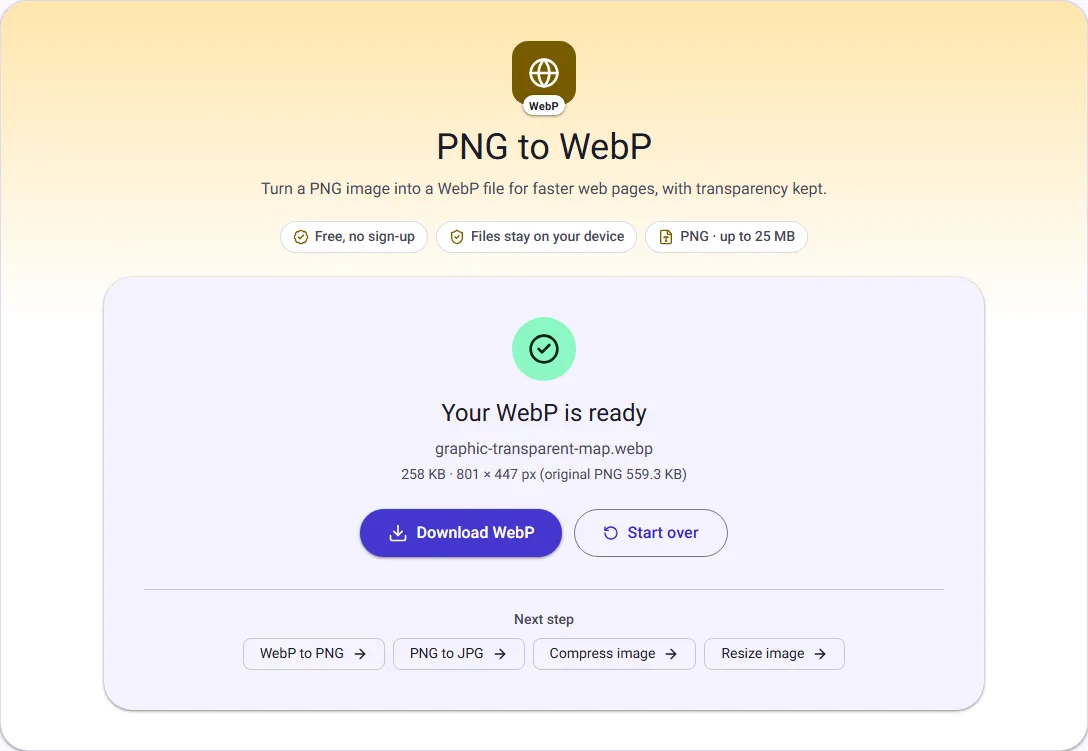
We ran this ourselves on 17 October 2026 with public-domain sample files. Your sizes will differ with your own files. The full walk-through is in Should You Use WebP Images on Your Website?.
Why use WebP on a website
WebP was designed for the web. For photos and detailed graphics it is usually much smaller than PNG at a quality most people cannot tell apart, which makes pages load faster and uses less mobile data. Every current major browser can display it.
Some software and upload forms still do not accept WebP, so keep your PNG for printing, editing and anywhere WebP is refused.
Transparency and quality
Transparent areas stay transparent in the WebP, so logos and cut-out product photos can sit on any background. The colour detail is compressed with the quality you choose, while the transparency itself is kept at full quality.
This tool creates lossy WebP files, so the result is not an exact copy of the PNG even at quality 100. Very simple graphics, such as flat icons, sometimes come out larger than the PNG; the result screen shows both sizes so you can keep whichever is smaller.
Choosing a quality
Quality runs from 1 to 100 and starts at 80. Around 75 to 85 is a common choice for website images. Go to 90 or more for screenshots with small text, and try 60 to 70 for large background photos where every kilobyte counts.