

Split PDF
Split one PDF into several smaller PDFs, by page range or one file per page.
- Free, no sign-up
- Files stay on your device
- PDF / up to 50 MB
Step by step
How to split a PDF
Step 1: Drop a PDF on the box above, or select Choose file. Its page count appears straight away.
Step 2: Type the ranges to split into, for example 1-3, 4-6, 7. Leave the box empty to save every page as its own PDF.
Step 3: Select Split PDF, then Download files. Several parts come as one ZIP file.
Worked example
Splitting a 10-page report in two
We split a 10-page report (14.3 KB) with the ranges 1-5, 6-10. The result was one ZIP file of 14.9 KB holding two PDFs of five pages each, named after the original and the pages each part holds.
Each part keeps its pages unchanged, so text stays selectable. A text-only report like this one is small to begin with, so the parts together are about the size of the original.
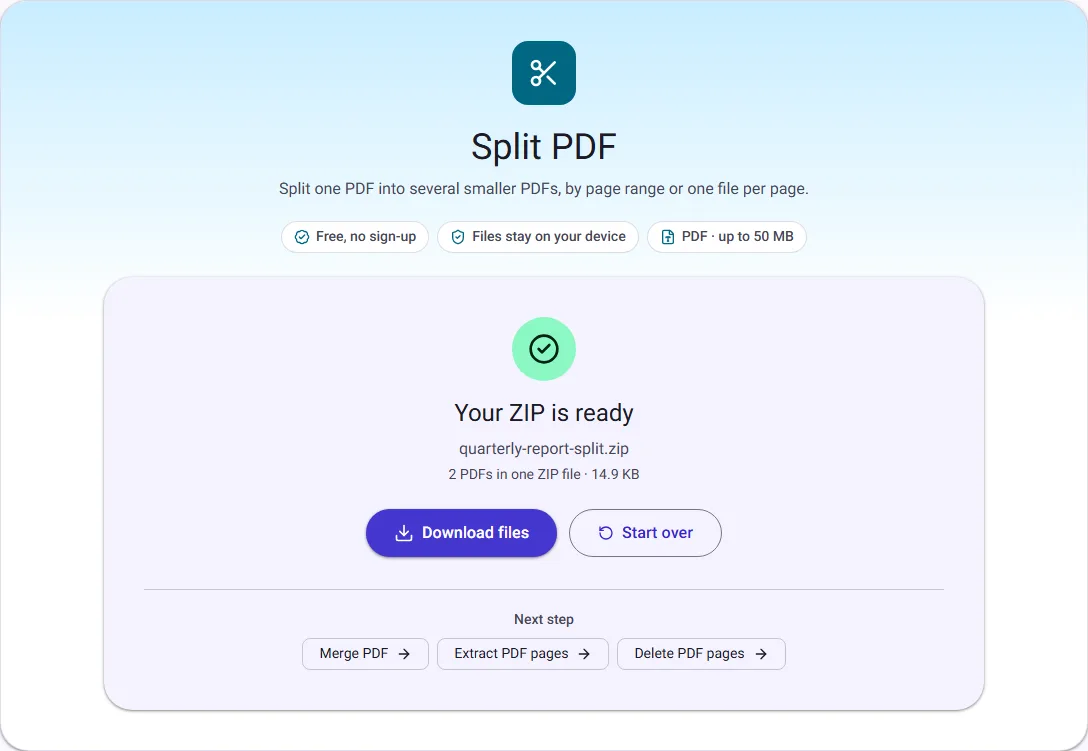
We ran this ourselves on 17 October 2026 with public-domain sample files. Your sizes will differ with your own files. The full walk-through is in How to Split a PDF into Separate Files or Page Ranges.
How ranges work
Each range you type becomes one PDF. 1-3, 4-6, 7 gives three files: pages 1 to 3, pages 4 to 6, and page 7 on its own. Page numbers start at 1, as in your PDF reader, and a range can cover a single page.
Ranges do not have to cover every page, and they may overlap: 1-5, 3-8 makes two files that both contain pages 3 to 5. The tool checks your ranges against the page count as you type and tells you if a page number is too high.
What you download
When the split makes more than one file, you get a single ZIP file containing all the parts, named after your PDF and the pages they contain, such as report-pages-1-3.pdf. Most computers and phones open ZIP files with a tap or double-click. If you ask for just one range, you get that PDF directly.
Pages are copied as they are, without re-compression, so text stays sharp and selectable. Bookmarks from the original are not copied into the parts.
Private by design
The PDF is split inside your browser tab and never leaves your device. Password-protected PDFs cannot be split until the password is removed, for example with Unlock PDF.