

PNG to JPG
Turn a PNG image into a JPG file, with transparent areas filled white.
- Free, no sign-up
- Files stay on your device
- JPG, PNG or WebP / up to 25 MB
Step by step
How to convert PNG to JPG
Step 1: Drop a PNG image on the box above, or select Choose file.
Step 2: Leave JPG quality at 85, or move the slider: higher keeps more detail, lower makes a smaller file.
Step 3: Select Convert to JPG, then Download JPG to save the new file.
Worked example
A transparent map turned into a JPG
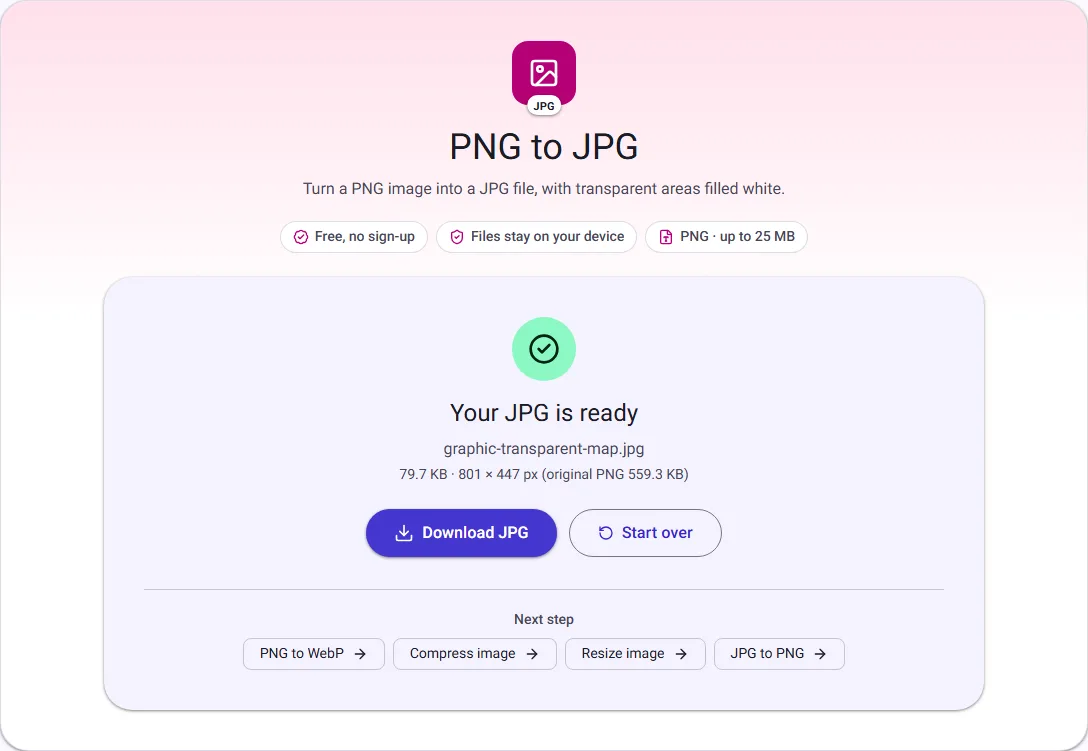
We converted an 801 × 447 pixel map with a transparent background. The PNG was 559.3 KB and the JPG was 79.7 KB, with the same dimensions.
JPG has no transparency, so the see-through background became white. That suits a document or an upload form; for a logo that sits on a coloured background, keep the PNG or use PNG to WebP.
We ran this ourselves on 17 October 2026 with public-domain sample files. Your sizes will differ with your own files. The full walk-through is in JPG vs PNG: Which Image Format Should You Use?.
When to convert a PNG to JPG
JPG is the format almost every website, form and camera app accepts, and for photos it is usually much smaller than PNG. Convert when a site rejects PNG uploads, when an email attachment is too big, or when a photo was saved as PNG by a screenshot tool or editor.
Keep the PNG instead for logos, icons, screenshots of text and anything with sharp edges or flat colour. JPG compression blurs those edges slightly, and for this kind of image the JPG can even come out larger than the PNG. The result screen shows both sizes so you can compare.
What happens to transparency and colour
JPG cannot store transparency, so any transparent or semi-transparent pixel is placed on a white background before conversion. If you need to keep a transparent background, keep the PNG or convert it to WebP instead.
Colours are converted to sRGB, the standard colour space for screens and the web, so images saved with a wide-gamut profile such as Display P3 still look right in the JPG. Metadata stored in the PNG, such as text notes, dates or camera details, is not copied to the JPG.
Choosing a JPG quality
JPG quality runs from 1 to 100. The default of 85 keeps photos looking the same to most people at a fraction of the PNG size. Choose 90 to 95 for images you will print or edit again, and 60 to 75 when a small file matters more than fine detail, for example on a slow website.
Converting to JPG is lossy at every quality setting, so the new file is never an exact copy of the PNG. Keep your original if you might need it later.