

To merge PDF files, put them in the order you want, then combine them into one document: every page of the first file, then every page of the second, and so on. With Merge PDF you add up to five PDFs, drag them into order, and download a single file, all inside your browser.
Merging sounds trivial, but most of the problems people run into are about order: an appendix that lands in the middle, a cover page at the end, or pages from two files that should alternate. This guide shows the steps with screenshots from our own tool, a measured example, and the tricks for getting any page order you need.
How to merge PDF files step by step
- Open Merge PDF and choose your files, or drop them on the page. Each file shows its size and page count.
- Put the files in the order the pages should appear. Drag a file by its handle, or use its up and down arrows. On a keyboard, focus the handle, press Space, move with the arrow keys, and press Space again.
- Select Merge PDF, then Download PDF.
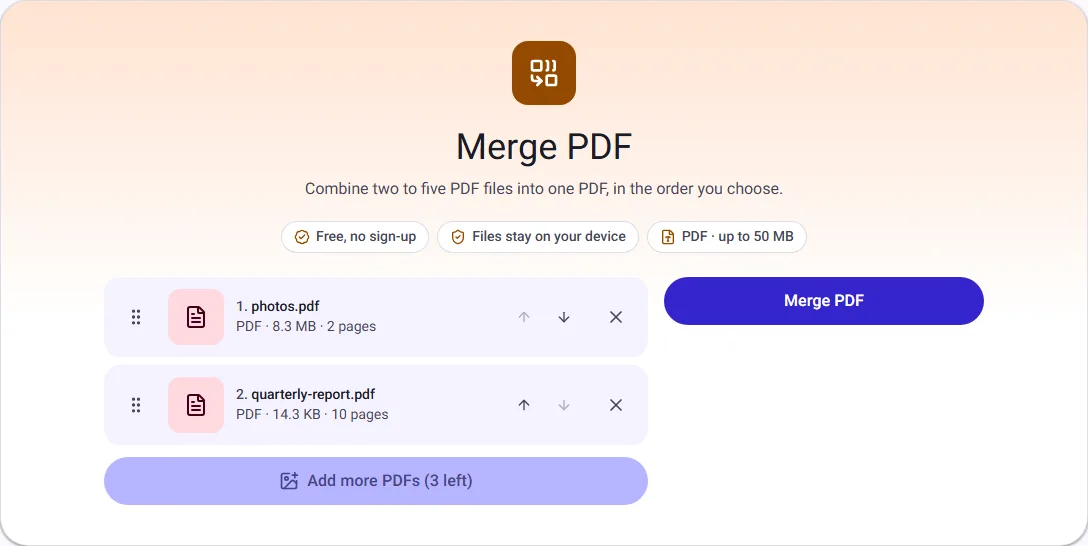
The list shows each file's size and page count before you merge, which is a quick way to catch the wrong file: if you expected a 3-page letter and see 30 pages, you picked the wrong one.
A worked example
We merged a two-page PDF of photos (8.3 MB) with a 10-page text report (14.3 KB). The merged PDF had 12 pages in the chosen order and was 8.3 MB, almost exactly the two files added together.
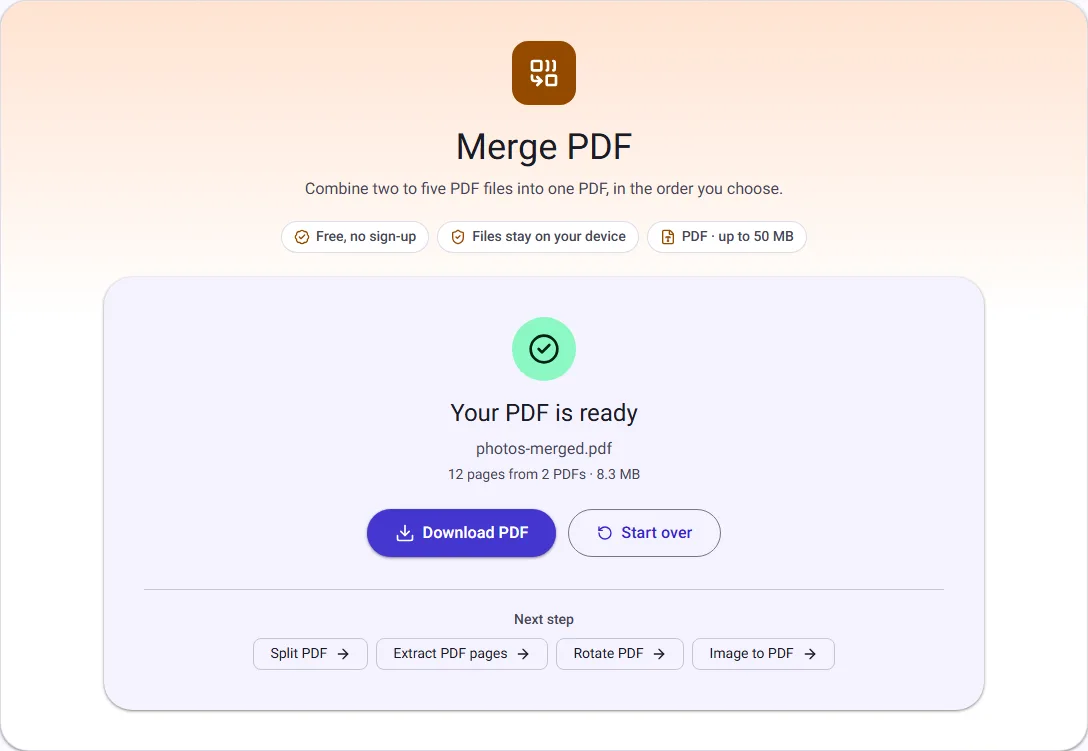
That size is expected. Merging copies pages as they are and does not compress anything, so text stays selectable and photos keep their quality. The flip side is that a merge of several large scans can be too big to email. If that happens, see how to reduce PDF size: the photo-heavy PDF in this example shrinks from 8.3 MB to about 405 KB.
Getting the page order right
Merging keeps whole files together. When you need a different order inside a file, fix it first:
- Only some pages? Make a smaller PDF of just those pages with Extract PDF pages, then merge that.
- Pages from several files interleaved? Split each file into parts with Split PDF, then merge the parts in the order you need. For example, to place a signed page 3 from one file into another document, split the document into pages 1-2 and 4-10, and merge: part one, the signed page, part two.
- Photos or scans? Combine images straight into one PDF with Image to PDF, which also lets you reorder them.
- Pages already merged in the wrong order? Open the merged file in Organize PDF and drag the page thumbnails into place, turning or removing pages as you go.
What carries over, and what does not
The pages, with their text, images and layout, are copied exactly. Some things belong to the original documents rather than their pages and are not copied:
- Bookmarks (the outline panel in PDF readers) are not carried into the merged file.
- Fillable form fields may stop working, although whatever was typed into them still shows. If a form matters, fill it and flatten it before merging, so the answers become part of the page.
- Document information such as the title and author is not copied: the merged file starts without it. You can add a title afterwards with PDF metadata.
- Password-protected PDFs cannot be merged, because their pages are encrypted. The tool names the protected file; if you know the password, remove it first with Unlock PDF.
Common mistakes and how to avoid them
- Merging the wrong version of a file. Check the page counts in the list before you merge. They are the quickest way to spot an old draft.
- Expecting a smaller file. Merging adds sizes together. Compress afterwards if you need a smaller file.
- Mixed page sizes. A Letter-size letter merged with an A4 report keeps both sizes, which can look uneven when printed. Use Resize PDF pages to put every page on the same paper size.
- Sideways scans. Turn them before or after merging with Rotate PDF, so the merged file reads top to bottom.
A routine for scanned paperwork
Applications and claims often ask for several documents as one PDF: an ID, a few payslips, a bank statement. A routine that works on a phone or a computer:
- Photograph or scan each paper document, then turn the photos into PDFs with Scan to PDF, which also cleans up the background so the pages look like paper rather than a photo of a desk.
- Merge the PDFs in the order the application asks for, with the cover letter or form first.
- Check the size. If it is over the upload limit, run the merged file through Compress PDF at the Recommended level.
- Open the final file once from start to finish before you send it. It takes a minute and catches a missing page or an upside-down scan.
Merging privately
Many merge services upload your documents to a server. Merge PDF combines the files inside your browser tab instead, so contracts, statements and other personal papers never leave your device. When you close or reload the page, the files are gone from it.
Questions people ask
How many files can I merge? Up to five at a time. To merge more, merge the first five, then merge the result with the next four.
Does merging lower quality? No. Pages are copied without being re-compressed.
Can I merge on a phone? Yes. Choose the files from your phone's Files app, use the arrows to set the order, and download the result.
How we measured
On 17 October 2026 we used our own Image to PDF and Merge PDF tools in Chrome; the screenshots are from that run. The photo PDF was made from two public-domain images from Wikimedia Commons: a fjord landscape (CC0) and oak leaves with flowers (CC0). The report is a 10-page sample document we generated for this guide, with no real data. Sizes are in KB and MB of 1024 bytes.

