

Resize image
Change the width and height of a JPG, PNG or WebP image in pixels, without cropping.
- Free, no sign-up
- Files stay on your device
- JPG, PNG or WebP / up to 25 MB
Step by step
How to resize an image
Step 1: Drop a JPG, PNG or WebP image on the box above, or select Choose file.
Step 2: Type a new width or height, or pick 25%, 50% or 75%. With Keep aspect ratio on, the other side follows.
Step 3: Select Resize image, then Download image to save the resized copy.
Worked example
A phone-size photo made ready for a website
We resized a 3882 × 2912 pixel photo of 2.9 MB to 1600 pixels wide. With Keep aspect ratio on, the height followed at 1200 pixels, and the file became 501 KB.
The 50% button on the same photo gave 1941 × 1456 pixels and 724.5 KB: half the width and height leaves a quarter of the pixels, and the file fell to about a quarter of its size.
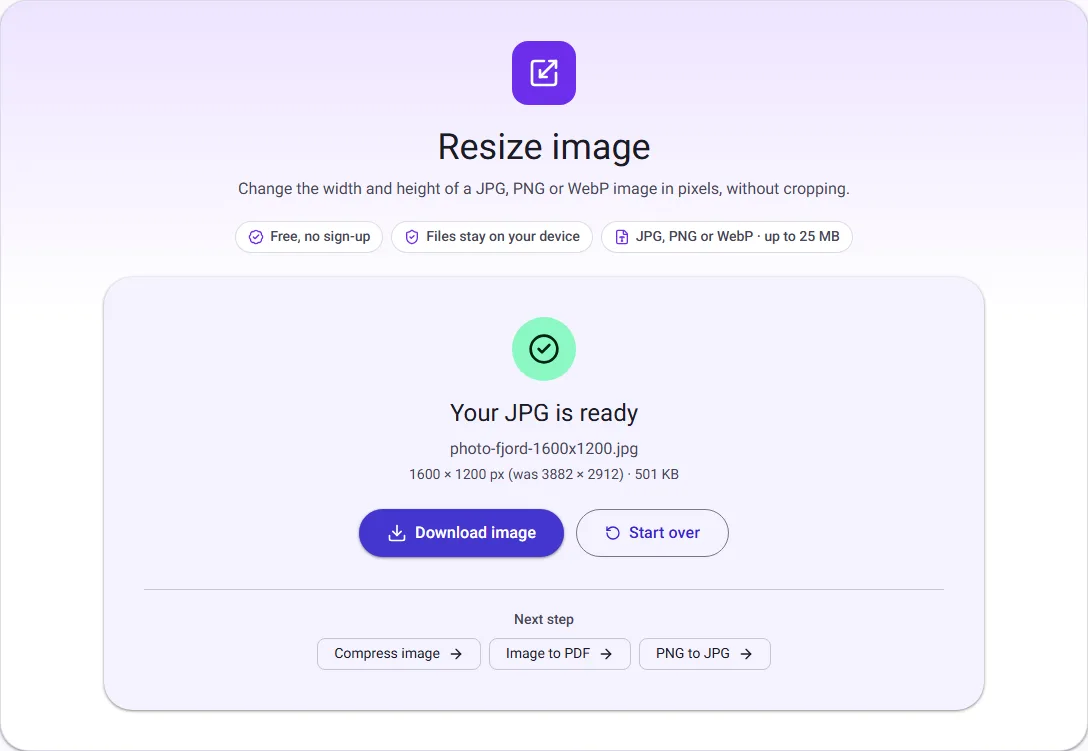
We ran this ourselves on 17 October 2026 with public-domain sample files. Your sizes will differ with your own files. The full walk-through is in How to Reduce Image Size for a Website.
Keeping the proportions
Keep aspect ratio is on by default, so changing the width sets the matching height and the picture never looks stretched or squashed. If you type both a width and a height with the lock on, the image is fitted inside that box. Nothing is ever cropped.
Turn the lock off only when you need an exact size and accept that the image will be stretched to fill it.
Making images smaller, or larger
Most people resize to make an image smaller: for a website, a profile picture, or an upload form with a pixel limit. Smaller dimensions also mean a smaller file. The new width and height are shown on the result screen next to the original.
Enlarging is off by default, because making an image bigger cannot add detail and usually looks soft. Tick Allow enlarging if you still need a larger size, for example to meet a minimum size required by a website.
Format and quality
The resized image keeps the format of the original. PNG stays PNG with any transparency, and JPG and WebP are saved at quality 90, which keeps them sharp. The image is resampled with the Lanczos method, which keeps edges crisp when shrinking.
Photos are turned upright using the rotation recorded by the camera, and camera details such as GPS location are not copied into the resized file.