

Protect PDF
Add a password that anyone must enter to open the PDF.
- Free, no sign-up
- Files stay on your device
- PDF / up to 50 MB
Step by step
How to password protect a PDF
Step 1: Drop a PDF on the box above, or select Choose file.
Step 2: Type a password, then type it again. Use Show password to check it.
Step 3: Select Protect PDF, then Download PDF. Keep the password somewhere safe.
Worked example
Protecting a 10-page report
We protected a 10-page report of 14.3 KB with a four-word passphrase. The protected file was 15.3 KB and showed as AES-256 encrypted, 10 pages.
The extra kilobyte holds the information readers need to check the password. Without the password the pages cannot be shown; with it, they open unchanged.
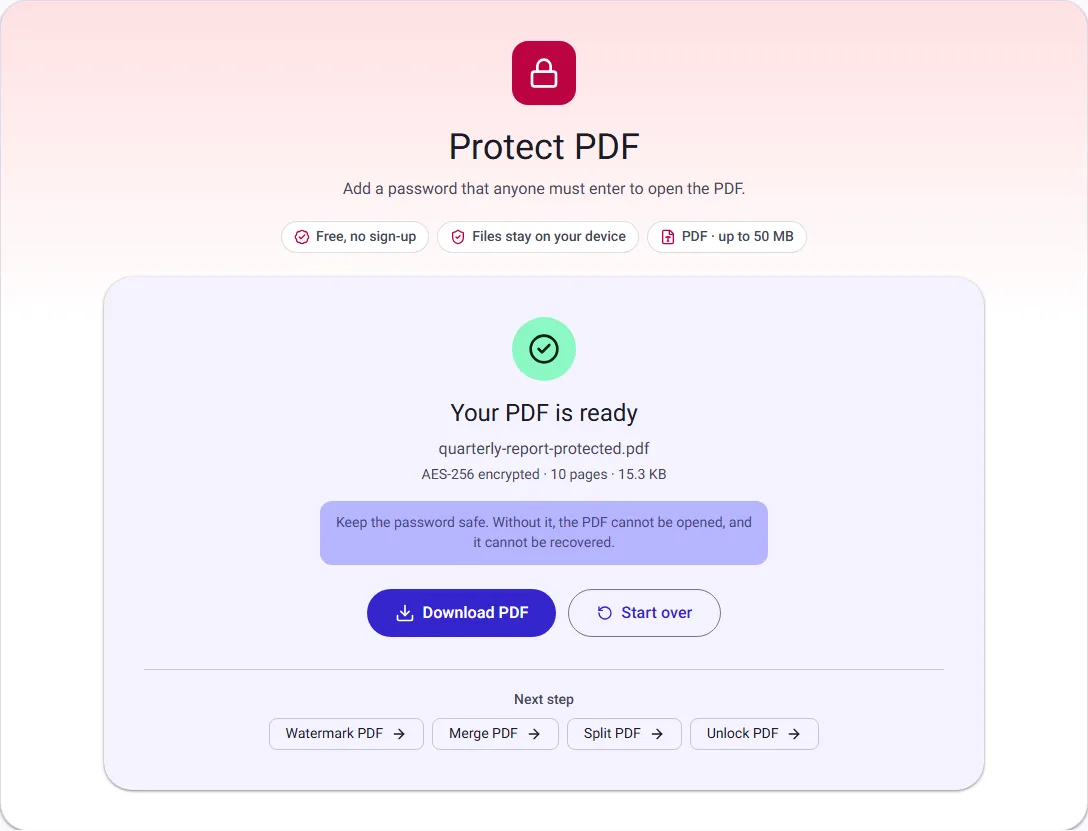
We ran this ourselves on 17 October 2026 with public-domain sample files. Your sizes will differ with your own files. The full walk-through is in How to Password Protect a PDF (and What Encryption Protects).
What the password protects
The PDF is encrypted with AES-256, the strongest method in the PDF standard, and every current PDF reader asks for the password before showing any page. The same password also allows changes, so you are never locked out of editing your own file.
Encryption is only as strong as the password. A short or common word can be guessed by software that tries millions of combinations; a long passphrase of several unrelated words is much safer and still easy to type.
If you lose the password
There is no reset and no recovery: without the password, nobody, including us, can open the protected PDF. Keep your original unprotected file, or store the password in a password manager, before you share or delete anything.
Some very old PDF readers, from before about 2010, cannot open this kind of AES-256 file. Current versions of Adobe Acrobat Reader, Apple Preview and web browsers such as Chrome, Edge, Firefox and Safari can.
Your password stays with you
Encryption happens inside your browser tab. The PDF and the password are never uploaded, never stored and never logged, and the password is cleared from the page once the protected file is ready.