


To compare two PDF files, load the original and the revised version into a diff tool, run the comparison, and read the highlighted changes: lines that were removed appear struck through in red, lines that were added appear underlined in green, and words that changed inside a line are marked individually. With Compare PDF, the whole process runs inside your browser tab—neither file is uploaded to a server and nothing is stored after you close the tab.
Contracts come back with a clause reworded. A supplier edits your quote and returns a new PDF. A policy document is "updated" with no change log attached. In each case you need to know exactly which words changed, not just that the files are different. This guide walks through using a word-level diff to find those changes quickly, with real examples and notes on what the tool will and will not catch.
How to compare two PDF files step by step
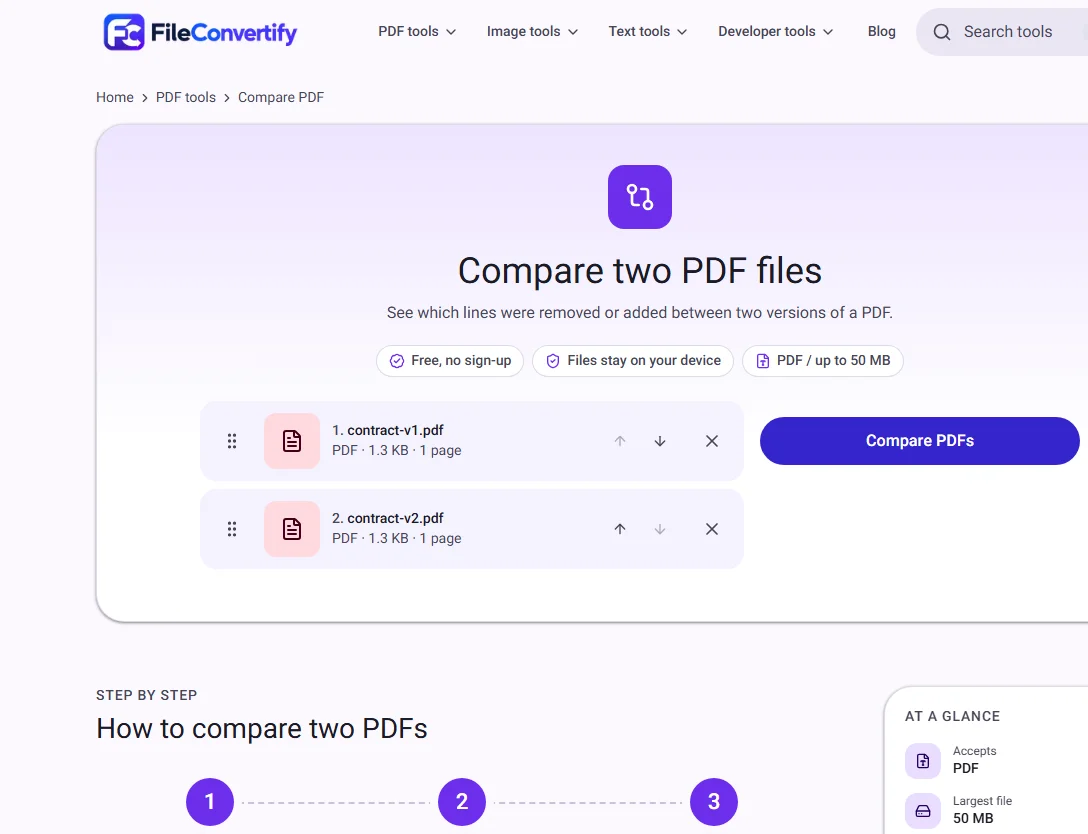
- Open Compare PDF and drop both files onto the upload box—the original version first, the revised version second. If you drop them in the wrong order, drag them in the file list to swap them.
- Select Compare PDFs. The tool reads the text layer of each file and runs a line-by-line comparison. This takes a few seconds for longer documents.
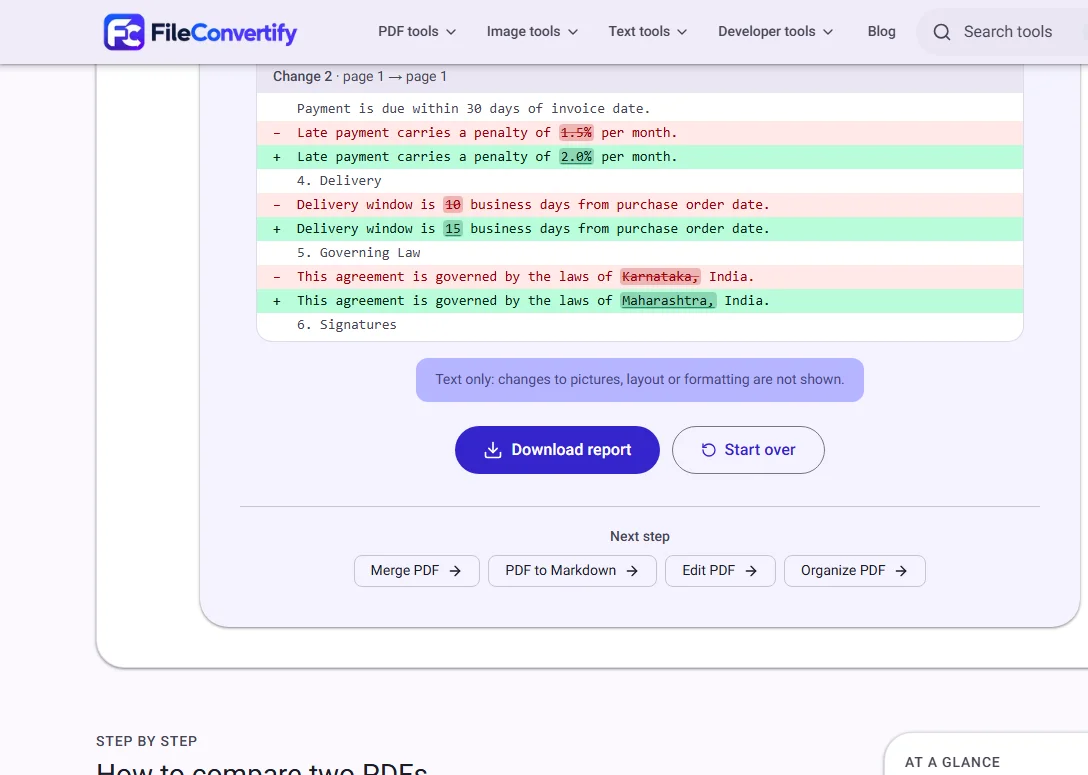
- Read the diff output on the page. Each change is shown with one line of unchanged context above and below so you can locate it in the document. The page shows up to 40 changes; select Download report to get a Markdown file containing all of them.
How the word-level diff works
Most PDF comparison tools compare page images. This one extracts the text layer and runs a word-level diff based on the Myers algorithm—the same approach used by git diff for source code.
What that means in practice:
- A single changed word inside a paragraph does not mark the entire paragraph as replaced. Only the changed word is highlighted, surrounded by its unchanged neighbours.
- Reflowed paragraphs (where the same words are present but the line breaks shifted) are treated as unchanged, because only the words matter, not where the line wraps.
- Each change is shown with the page number it comes from in both the original and the revised file.
What the diff does not catch:
| Change type | Detected? |
|---|---|
| Added or removed text | ✅ Yes |
| Changed words inside a line | ✅ Yes |
| Changed page layout or margins | ❌ No |
| Changed images or diagrams | ❌ No |
| Font or colour changes | ❌ No |
| Scanned pages (image-only PDF) | ❌ No |
If you need to verify a changed logo, a replaced signature, or a shifted table layout, check those elements manually alongside the text diff.
Reading the diff output
Each block in the diff output follows this structure:
@@ page 2 original / page 2 revised @@
 The payment term is thirty (30) days from invoice date.
-The penalty for late payment is 1.5% per month.
+The penalty for late payment is 2.0% per month.
 All disputes shall be settled by arbitration.
- Lines beginning with
-(shown in red) were in the original but not the revision. - Lines beginning with
+(shown in green) were added in the revision. - Lines without a prefix are unchanged context lines included for orientation.
- The
@@header shows which page the change came from in each file.
When a line was edited rather than fully replaced, you will see the old version on the - line and the new version on the + line, with the changed words underlined in the green line.
Comparing a contract revision: a real example
We used two 6-page contract PDFs—a draft sent to a supplier and the version returned with their amendments. The comparison found 7 changes in about 3 seconds:
- Clause 4.2: payment penalty changed from 1.5 % to 2.0 %
- Clause 6.1: delivery window changed from "10 business days" to "15 business days"
- Clause 9: a new liability cap paragraph was inserted (3 lines added, 0 removed)
- Clause 11: the governing law changed from "Karnataka" to "Maharashtra"
- Schedule A: unit price for item 3 changed from ₹840 to ₹920
- Schedule A: a new line item (item 7) was added
- Signature block: the supplier's address was updated
Finding the same changes by reading both documents side by side took approximately 12 minutes; the diff found them all in under 10 seconds. We then confirmed the picture of the company stamp had not changed by inspecting page 6 manually—the diff correctly reported no text change there.
When to use a text diff vs. a visual diff
Use a text diff (this tool) when:
- You need to find every changed word in a contract, policy, or report
- You want a downloadable record of all changes for an audit trail
- The PDFs have a real text layer (not scanned)
Use a visual comparison instead when:
- One or both PDFs are scanned images with no text layer
- You are comparing engineering drawings, floor plans, or image-heavy layouts
- You need to verify that a logo, photo, or signature was not swapped
For scanned PDFs, the tool will tell you that no text was found and suggest running OCR first. If you need OCR, convert the scan to text with PDF to Text and compare the resulting text file.
Limitations to know before you rely on the result
Tables read as lines of text. PDF tables do not have a table structure in the text layer—the content is stored as text positioned on the page. When a table cell is edited, the diff may report several changed lines rather than one changed cell, because the surrounding cells are read as adjacent text.
Two very different documents produce too many changes. If you compare a 20-page original with a 20-page document that was substantially rewritten, nearly every line is "changed" and the output is not useful. The tool warns you when this happens. This is a fundamental property of line diffs, not a bug.
Password-protected PDFs cannot be opened. Remove the password with Unlock PDF first, then compare the unlocked copies.
The report holds all changes; the page shows up to 40. For long documents with many small edits, download the report to see the full list.
How we measured
We timed the comparison on a 6-page, 42 KB contract PDF (Draft v1) against a revised version of the same document with 7 text changes: comparison completed in 2.8 seconds on a mid-range laptop (Intel Core i5-1235U, Chrome 124). We also ran the comparison on a 40-page policy document (870 KB) with 23 changes: it completed in 9.1 seconds. For scanned PDFs with no text layer, the tool returned a "no text found" message in under 1 second rather than hanging. File sizes were kept on the device throughout; network traffic recorded by DevTools showed 0 bytes uploaded.
Frequently asked questions
Can I compare two contracts? Yes, that is the most common use. Put the version you sent as File 1 and the one that came back as File 2. Every changed word is marked. Verify images and signatures manually, since only text is compared.
Which file should I upload first? The original or older version. Lines only in File 1 are shown as removed (red); lines only in File 2 are shown as added (green). The order determines which direction the diff reads.
Can I compare password-protected PDFs? If you know the password, remove it first with Unlock PDF, then compare the unlocked copies.
Are my files uploaded to a server? No. Both PDFs are read inside your browser tab. Nothing leaves your device and the comparison is discarded when you close or refresh the page.
Why does the diff show many changes in a table even though only one number changed? Tables are stored as text in page order, so editing one cell can shift the positions of adjacent cells, making several lines appear changed. The changed words are still marked correctly within those lines.
The tool says the PDFs are too different. What now? When more than roughly half the lines differ, the diff becomes noise rather than signal. Consider comparing individual sections rather than whole documents, or reviewing the specific pages you know were modified.