

To redact a PDF, remove the private content from the file, not just cover it. A black rectangle drawn on top of a page often hides nothing: the words underneath can still be copied, searched or pulled out with a text tool. Redact PDF rebuilds every page you mark as a picture with the boxes painted in, so the covered words are no longer in the file. It works in your browser, and the document is never uploaded.
Why a black box is not a redaction
Many PDF editors, comment tools and drawing apps add a black box as a new layer on top of the page. The page looks redacted on screen and on paper, but the original text is still underneath, in the same place, readable by any program that reads PDF text.
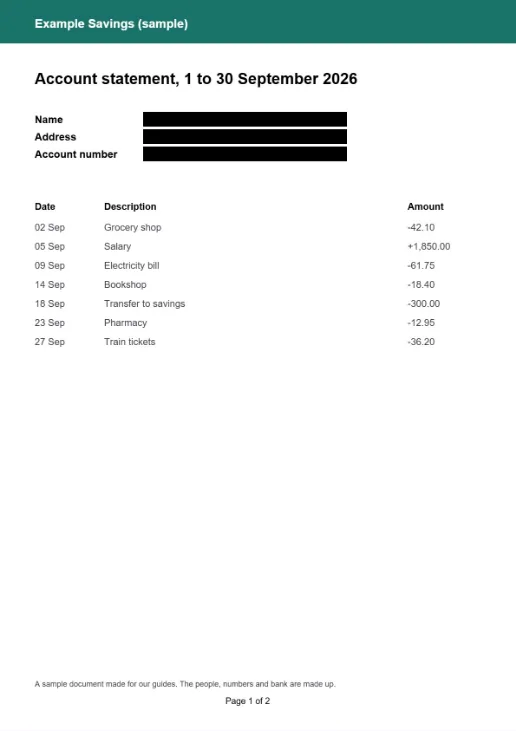
We tested this on a made-up two-page bank statement. We drew black rectangles over the name, the address and the account number, the way a drawing tool does. On screen the details were gone:
Then we opened the same file with our PDF to text tool. It read 115 words from 2 pages, including every detail under the boxes:
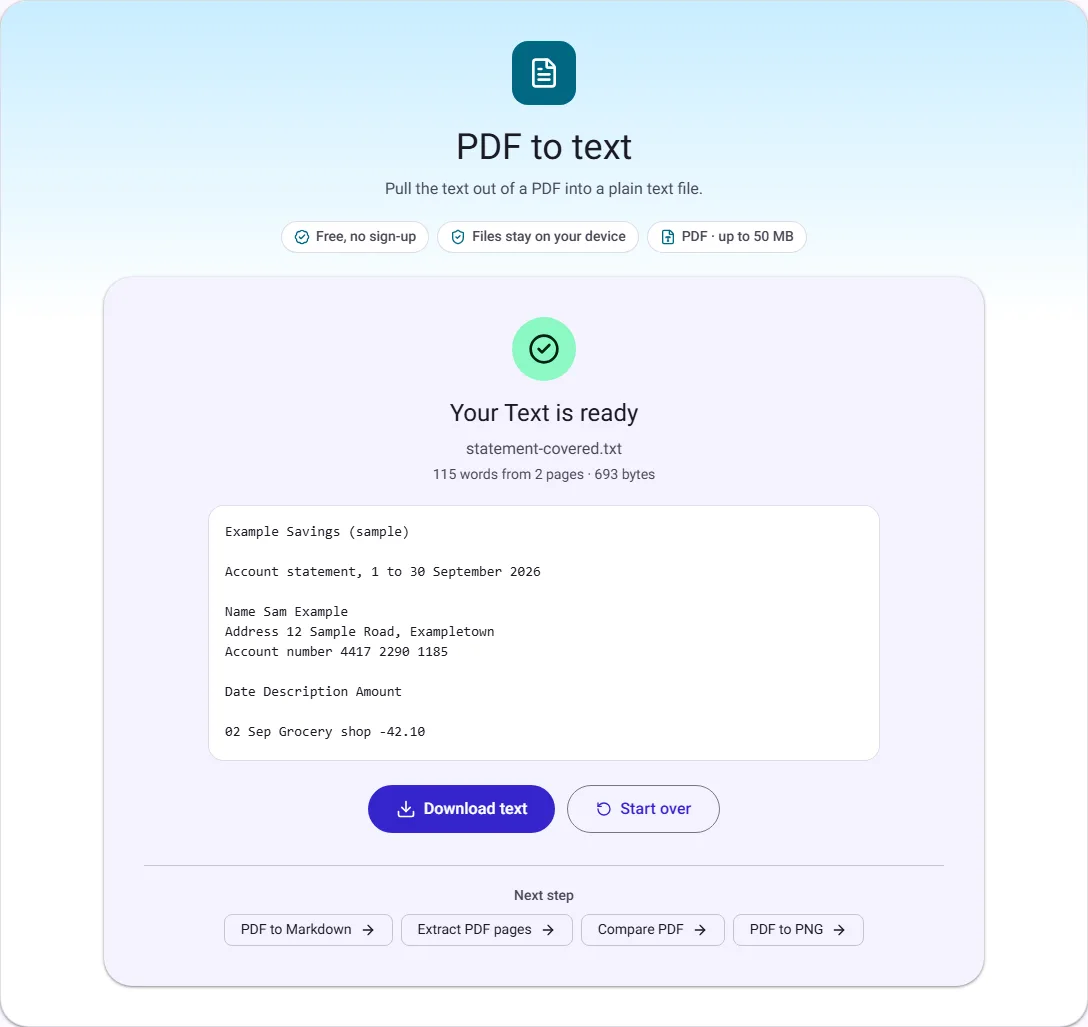
Anyone who receives a file like this can do the same with a free tool, or simply select the text and paste it somewhere else.
How to redact a PDF step by step
- Open Redact PDF and choose your PDF. The first page opens large.
- Drag across anything private to cover it with a black box. Move a box, or drag its corners, to fit it. Use the arrows above the page to go to other pages.
- Select Redact PDF, then Download PDF.
- Check the result, as described below, before you share it.
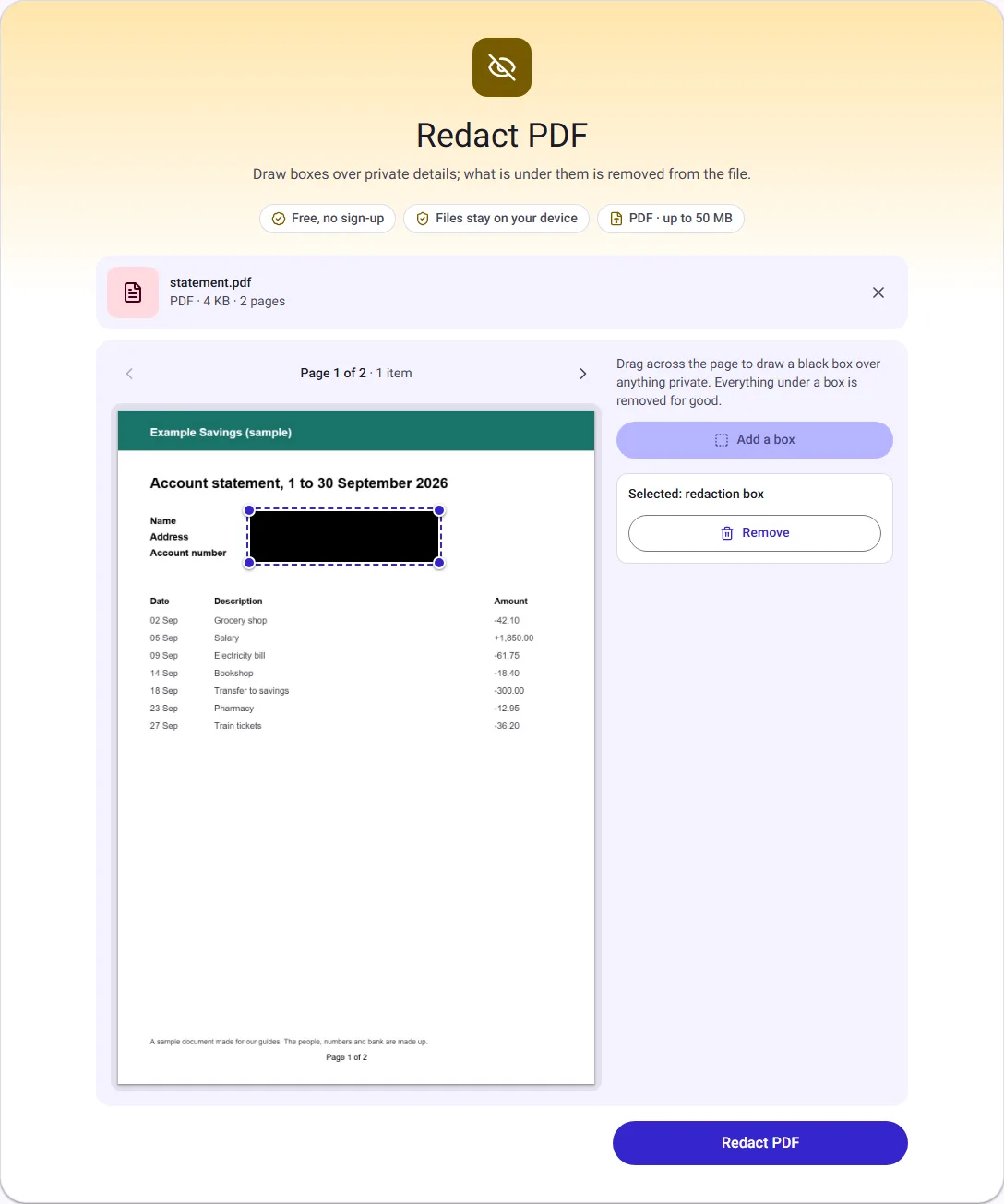
Draw the box a little larger than the text. Letters that stick out above or below a box, such as the tail of a "g" or "y", can be enough to guess a short word or number.
What our test showed
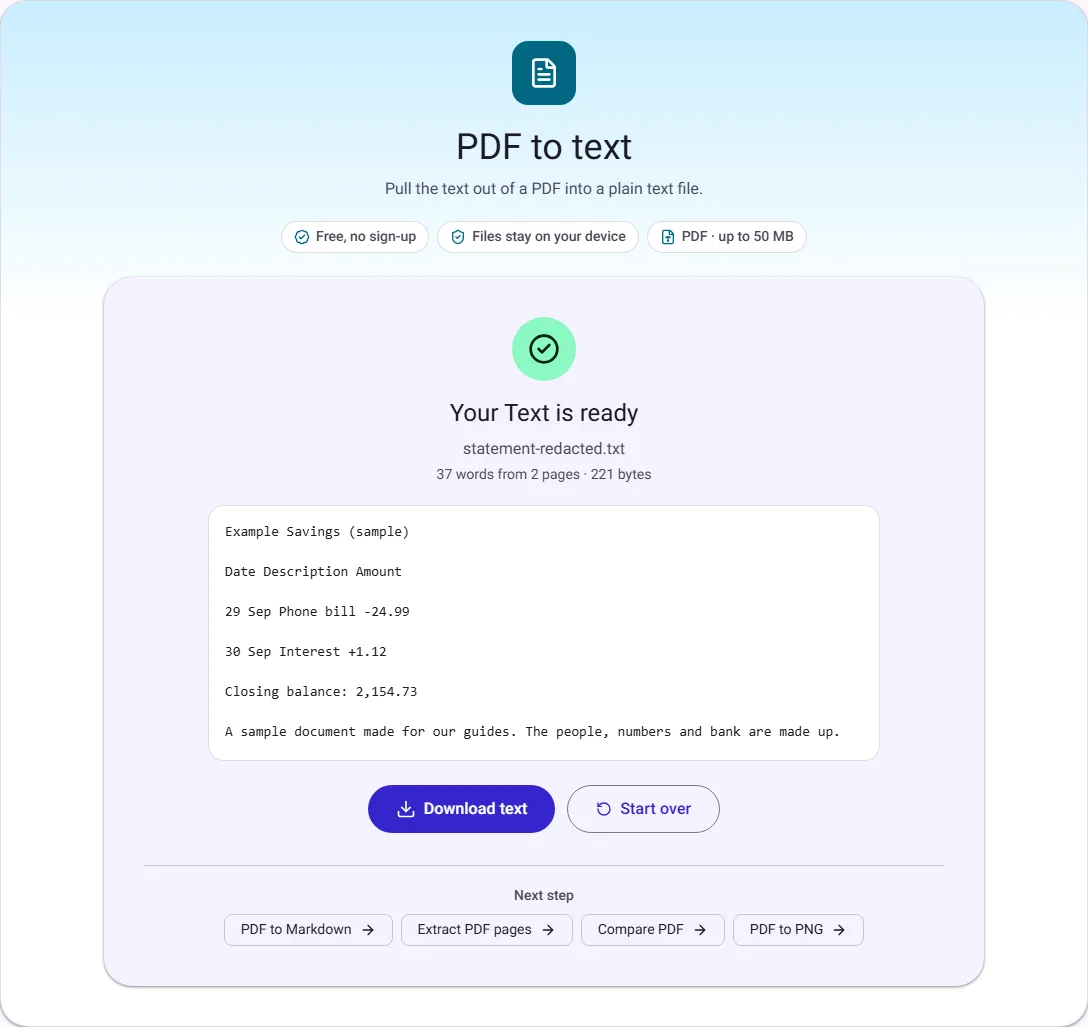
We redacted the original statement, without the black rectangles, with one box over the three details. The result said 1 of 2 pages redacted, and the file went from 4 KB to 93.9 KB.
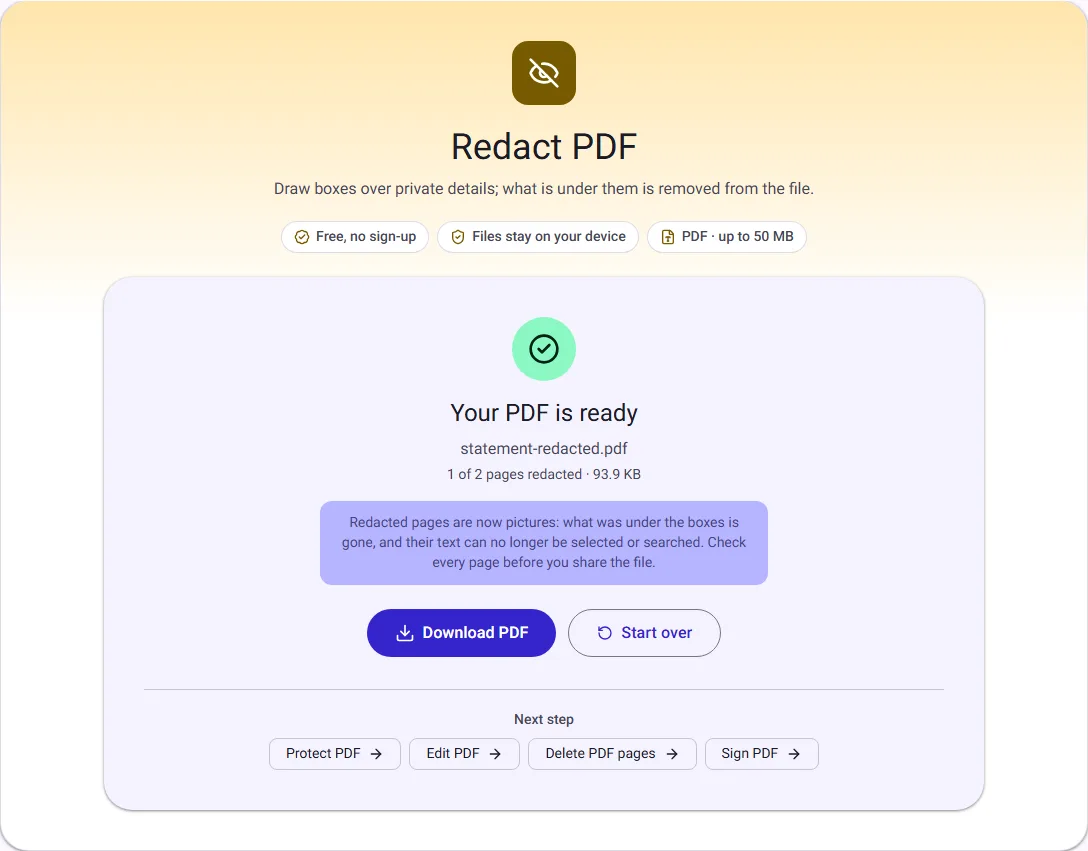
Then we ran the redacted file through PDF to text again. This time it found 37 words, all from page 2. Page 1 had no text left to read at all, and the account number was nowhere in the file:
What changes in the redacted file
Rebuilding a page as a picture is what makes the redaction real, and it has side effects you should know about:
- The text on redacted pages can no longer be selected or searched, not only the covered part. Pages without a box keep their text.
- The file usually gets bigger. A picture of a page takes more space than its text; here it was 4 KB before and 93.9 KB after. If size matters, redact only the pages that need it.
- Pages are drawn at about 150 dpi. They read and print well, but very small print may look slightly softer than in the original.
- Links and fill-in form fields on redacted pages are removed. The document title, author and bookmarks of the original are not copied either.
If you need the rest of the document to stay searchable, that is fine: only pages with a box are turned into pictures.
Check the result before you share it
Do not trust how the page looks. Check the file itself:
- Open the redacted PDF and try to select the text where a box was. On a redacted page, nothing should be selectable.
- Run it through PDF to text and search the preview or the downloaded text for the name or number you removed. It should not appear.
- Look at every page. Redact PDF does not find words for you; each box is one you drew.
Details people often miss
- Repeats. A name in the heading may also appear in a footer, a signature block or a table on page 7. Before you start, run the original through PDF to text with Page headings turned on, search the text for each detail, and note the page numbers.
- The file name. A file called statement-sam-example.pdf gives the name away. Our tool names the result after the original, plus "-redacted", so rename it before sending.
- Document properties. The original's title and author are not copied into the redacted file. If you only need to clear those details from a PDF you are not redacting, use PDF metadata.
- Pictures and scans. A box over part of a photo or a scanned page removes that area too, because the whole page is rebuilt.
Redaction, passwords and hiding: which one?
| You want to | Use |
|---|---|
| Share a document with some details removed for good | Redact PDF |
| Keep the whole document private from everyone else | Protect PDF with a password |
| Remove whole pages | Delete PDF pages |
| Cover something for looks only, in a file you keep | A box in Edit PDF (the text stays in it) |
A password protects the whole file until someone opens it; redaction removes details for everyone, including people who have the password. For a sensitive document you can do both: redact first, then password protect the PDF.
Questions people ask
Can someone remove the black boxes afterwards? Not from a file made with Redact PDF. The redacted pages are pictures with the boxes painted in, and the original page content is not in the new file, so there is nothing underneath to uncover.
Can it find every email address or phone number for me? Not yet. You draw each box yourself, which is why the check above matters.
Can I redact a password-protected PDF? If you know the password, remove it first with Unlock PDF, then redact the unlocked copy.
Is my document uploaded? No. The pages are drawn and the new PDF is made inside your browser tab.
How we measured
On 17 October 2026 we made a two-page sample account statement with invented details (4 KB) and a copy with black rectangles drawn over the name, address and account number. We used our own PDF to text and Redact PDF tools in Chrome; the word counts and sizes are the ones the tools showed, and the screenshots come from that run. Whenever we change the tool, our automated tests also check that redacted text is gone from the file and that pages without a box keep their text. Sizes are in KB of 1024 bytes.