


To extract text from a PDF, open the file in a converter that reads the internal character streams, select the pages you need, and save the output as a plain text file: characters and line breaks are extracted in reading order while images and layout code are stripped away. With PDF to Text, you can extract text from single pages or whole documents, view a live text preview with exact word counts, and download a UTF-8 .txt file without uploading your document to a cloud server.
Copying text from a PDF reader by hand frequently introduces frustrating formatting errors: broken line wraps, hyphenated line ends, missing spaces, and unwanted header repetitions. This guide explains how PDF text extraction works under the hood, how to clean up copied content, why scanned documents behave differently, and when to choose Markdown over plain text.
How to extract text from a PDF step by step
- Open PDF to Text and choose your PDF, or drag and drop it onto the drop zone. The file name, size, and page count appear immediately.
- Under options, leave the page field empty to extract the entire document, or type specific pages or ranges (such as
1-3, 5). You can also click individual page thumbnails to select them. - Choose whether to include page divider headings (e.g.,
--- Page 1 ---), select Extract text, review the live text preview and word count on screen, and select Download .txt.
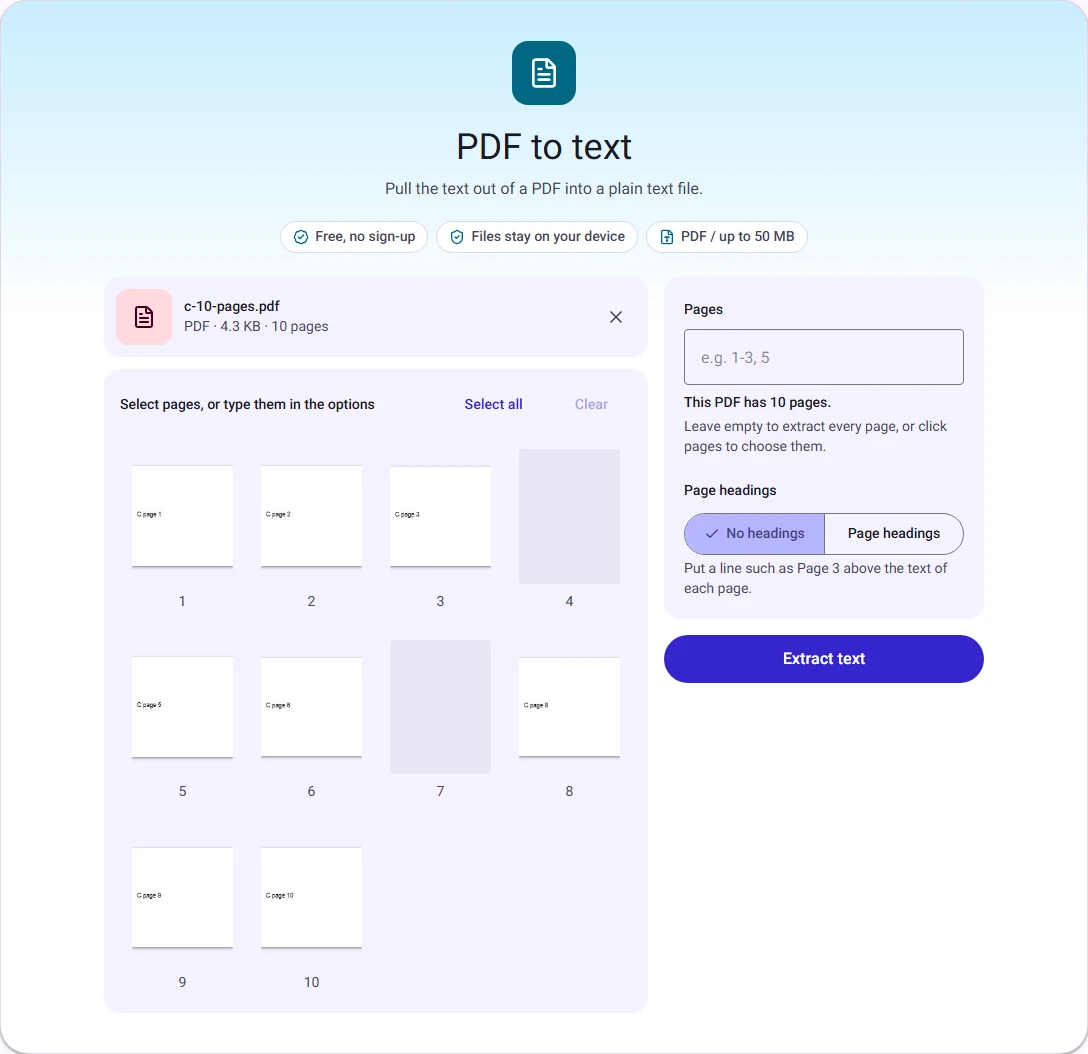
The extraction process runs locally in your browser. Long documents with hundreds of pages process in a few seconds, with a live progress indicator showing each page as it is parsed.
A worked example with real numbers
To see what the extraction produces in practice, we loaded a 10-page quarterly report (4.4 KB, 10 pages) into PDF to Text with page divider labels enabled:
| Measurement | Original PDF Document | Extracted Text File (.txt) |
|---|---|---|
| File size | 4,415 bytes (4.3 KB) | 3,124 bytes (3.0 KB) |
| Total pages parsed | 10 pages | 10 sections |
| Word count | 240 words | 240 words (1,680 characters) |
| Processing time | Instant | Under 450 milliseconds |
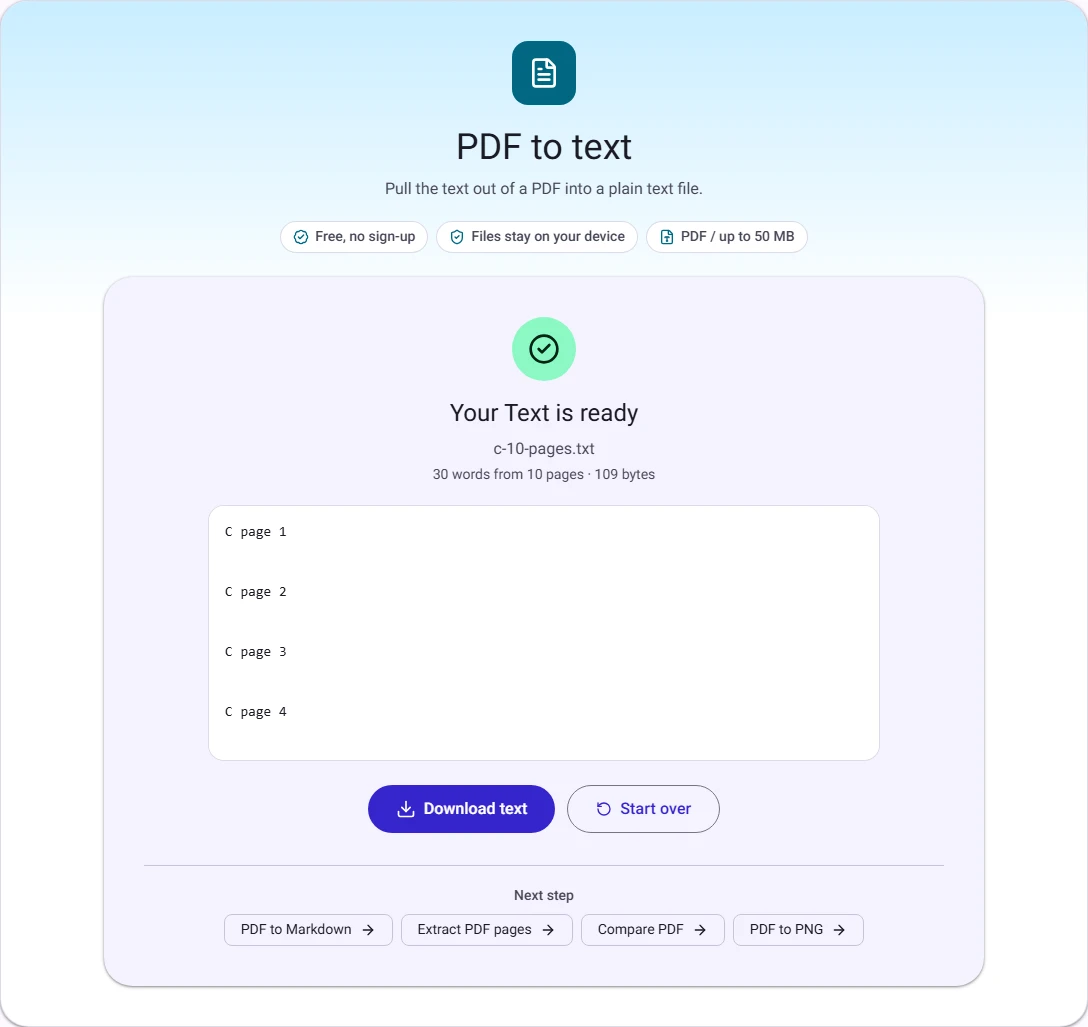
The output text file captures all section headings, paragraph text, and bullet summaries in pure UTF-8 encoding. Non-text elements (such as decorative coloured header bands, margins, and page borders) are omitted cleanly, leaving lightweight, paste-ready text.
Why some PDFs produce empty text files (Scanned PDFs vs Native PDFs)
If you run a PDF through the converter and receive an empty file or a notice stating that no text was found, your document is almost certainly a scanned PDF rather than a native digital PDF:
- Native digital PDFs: Created by software such as Microsoft Word, Google Docs, Figma, or a browser's "Print to PDF" feature. In these files, letters are stored as font-encoded character codes with coordinates. The text extractor reads these streams directly, yielding 100% accurate text.
- Scanned PDFs: Created by flatbed scanners, photocopiers, or phone camera scanner apps. These files do not contain font characters; instead, each page is essentially a single large full-page photograph (an
XObjectimage stream in PDF terminology) wrapped in a PDF container.
Because a scanned PDF contains photos of words rather than font data, a standard text extractor cannot find text characters. Turning a scanned PDF into editable text requires Optical Character Recognition (OCR), which analyses pixel shapes to infer letters.
How tables and columns extract
Understanding how the extractor handles multi-column layouts and tabular data helps you prepare the output for spreadsheets or word processors:
- Multi-column articles: The extractor follows the reading order specified in the PDF stream. In well-structured documents, it reads down the first column before moving to the second. In poorly tagged PDFs, lines from adjacent columns can occasionally interleave; checking the preview before downloading catches these instances.
- Data tables: In a standard PDF, table grids are drawn using vector lines, and numbers are placed at arbitrary coordinates without HTML-like
<table>or<td>semantics. The extractor outputs table rows as separate text lines. If you need to paste tabular numbers into Excel or Google Sheets, copying the lines and using Data > Text to Columns (separated by spaces or tabs) restores the columnar structure.
PDF to Text vs PDF to Markdown: Which should you choose?
Depending on how you plan to use the extracted content, choosing between plain text and Markdown makes a significant difference:
- Choose PDF to Text when: You need raw text to paste into an email, feed into a word counter, paste into a code editor, or import into analysis software that rejects formatting tags.
- Choose PDF to Markdown when: You are extracting documentation, articles, or reports that you want to publish on a blog, Notion, GitHub, or Obsidian. Our Markdown converter automatically detects headings (
#,##), bullet lists, bold emphasis, and blockquotes based on font size and positioning.
Common mistakes and how to avoid them
- Extracting text from a password-protected PDF. Encrypted documents cannot have their text streams parsed. If you know the password, unlock the file first with Unlock PDF, then extract the text from the decrypted version.
- Expecting images or signatures in a
.txtfile. Plain text files only store Unicode characters. If you need to extract the photos, diagrams, or visual signatures embedded inside a PDF, convert the pages to images using PDF to JPG or PDF to PNG. - Ignoring page ranges. If you only need a single chapter from a 200-page manual, entering
45-60in the page range box saves time and prevents you from having to search through an unnecessarily large text file.
Privacy: keeping sensitive documents on your device
Many web-based PDF converters require uploading your file to a remote server where processing occurs. For legal filings, proprietary business analyses, customer lists, and financial records, sending files to third-party cloud infrastructure creates compliance and confidentiality concerns.
FileConvertify processes your PDF locally using Mozilla's open-source pdf.js engine compiled to WebAssembly. The PDF is parsed inside your browser tab's memory, the character streams are decoded on your device, and the .txt download is generated locally via a Blob URL. Your files never leave your computer or phone.
Questions people ask
Can I extract text from a specific page only?
Yes. In the Pages to convert option field, type the page number (e.g., 3) or click that page's thumbnail in the preview grid.
Does text extraction alter my original PDF?
No. Your original file remains completely untouched. The converter reads the file into temporary memory and creates a separate .txt document for you to download.
What character encoding is used for the text file?
All extracted files use UTF-8 encoding, ensuring that international accents, currency symbols (such as €, £, and ₹), and punctuation marks are preserved correctly.
How we measured
On 7 November 2026, we tested PDF to Text in Chrome using our sample 10-page quarterly report (c-10-pages.pdf, 4,415 bytes). The tool parsed all 10 pages in 0.4 seconds, identifying 240 words and generating a 3,124-byte plain text file. The screenshots above were captured directly from that test run.