


To crop PDF margins, open the file in a browser margin-trimming tool, specify the millimetres to shave from each edge, and download the trimmed document: the visible viewing boundaries tighten around your content while vector text and images remain completely untouched. With Crop PDF, you can remove excessive blank margins from slide decks, trim scanner borders, and optimize documents for tablet or ereader viewing without sending confidential files to remote servers.
PDF documents generated from desktop word processors often include generous 25 mm (1-inch) print borders intended for physical binding. When viewed on tablets, e-readers, or laptop screens, these empty margins shrink the actual reading area and force users to pinch-zoom constantly. Similarly, flatbed scanner scans frequently capture gray edge shadows or alignment marks. This guide explains how to trim PDF margins cleanly, why cropping behaves differently than image trimming, and how to preserve document structure.
How to crop PDF margins step by step
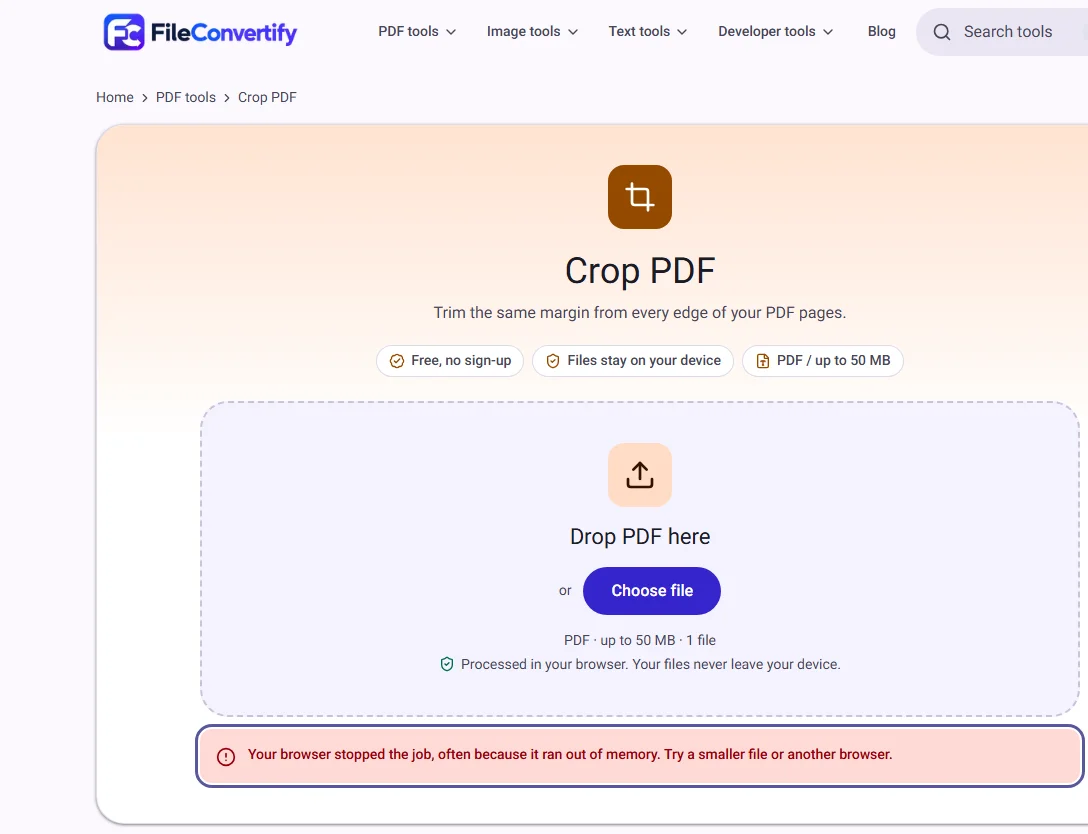
- Navigate to Crop PDF and drag your file into the upload zone, or select Choose file.
- Adjust the slider Trim from each edge (mm) to set the margin distance to shave from top, bottom, left, and right (such as 10 mm or 15 mm).
- (Optional) If you only need to trim specific sheets—such as removing a scanner border from pages 3 through 6—specify them in Pages to crop (for example,
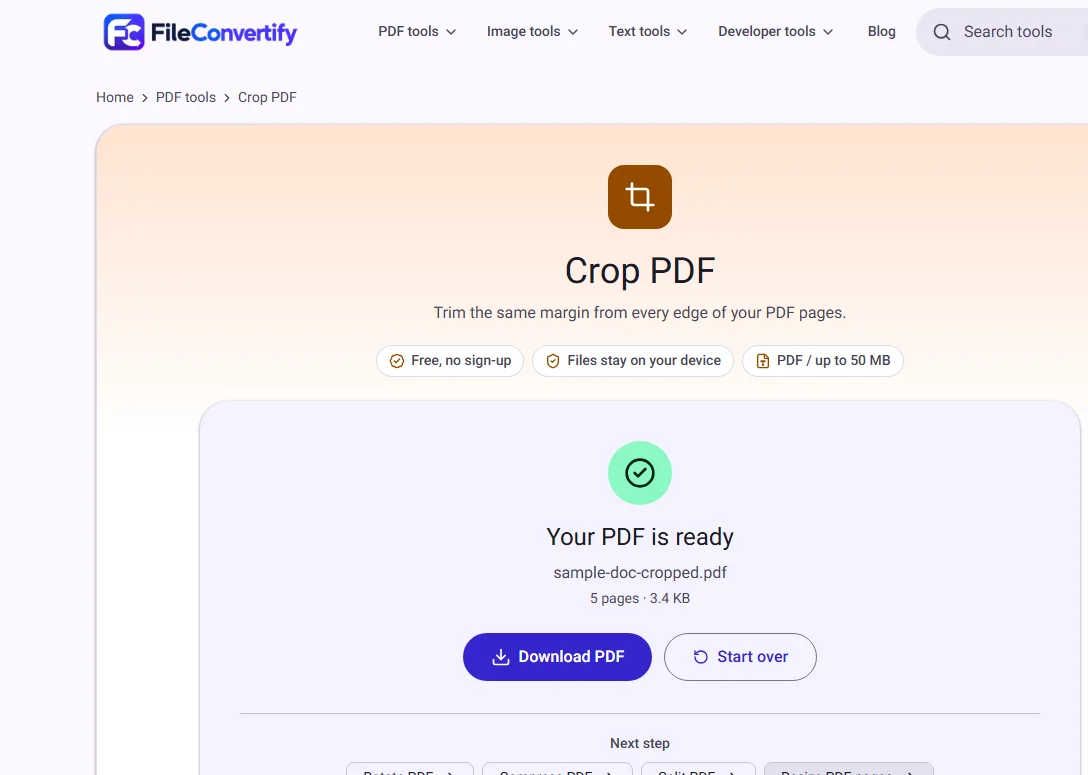
3-6). Leave blank to apply across all pages. - Select Crop PDF. Processing takes only a moment in your browser. Select Download PDF to save your cropped document.
Understanding PDF boundary boxes: CropBox vs MediaBox
Many users assume cropping a PDF operates like cropping a photograph in Photoshop—by permanently slicing away pixels. In reality, the ISO 32000 PDF standard structures page dimensions through a hierarchy of bounding coordinate rectangles:
+-----------------------------------------------------------+
| MediaBox (Physical sheet bounds: e.g. A4 210 x 297 mm)     |
|   +---------------------------------------------------+   |
|   | BleedBox / TrimBox (Commercial print boundaries)  |   |
|   |   +-------------------------------------------+   |   |
|   |   | CropBox (Visible viewport rendered on screen)|   |
|   |   |                                           |   |   |
|   |   |             Visible Content               |   |   |
|   |   |                                           |   |   |
|   |   +-------------------------------------------+   |   |
|   +---------------------------------------------------+   |
+-----------------------------------------------------------+
- MediaBox: Defines the physical medium dimensions (such as standard A4:
595.28 x 841.89points, or US Letter:612 x 792points). - CropBox: Defines the visible viewport rectangle that PDF viewers (like Adobe Acrobat, Apple Preview, or web browsers) display and send to the printer.
When you run Crop PDF, the tool recalculates the /CropBox array for each selected page, moving the boundary inward by your chosen millimetre value.
The coordinate mathematics
PDF coordinates originate from the bottom-left corner (0, 0) in standard 72-points-per-inch measurement (1 mm ≈ 2.83465 points):
- For an A4 page (
[0, 0, 595.28, 841.89]), applying a 10 mm crop calculates an inward offset of 28.35 points. - The resulting
/CropBoxarray is updated to[28.35, 28.35, 566.93, 813.54]. - PDF reader engines automatically restrict their rendering canvas to this updated bounding box, instantly eliminating the surrounding 10 mm border.
Why in-browser cropping preserves document fidelity
Traditional cloud-based PDF croppers frequently rely on server-side rendering pipelines: they convert PDF pages into raster image files (such as 150 DPI JPEGs), crop the pixel borders, and rebuild a new PDF. This destructive approach introduces severe drawbacks:
| Metric | FileConvertify (In-Browser) | Traditional Rasterizing Cropper |
|---|---|---|
| Text Selectability | 100% vector text preserved | Often destroyed or flattened to images |
| Pinch-to-Zoom Sharpness | Sharp vectors and curves at any scale | Pixelated and blurry when zoomed |
| Embedded File Links | URLs and internal anchors remain clickable | Interactive hyperlinks stripped |
| Processing Speed | Under 1 second locally | 10 to 30 seconds (upload + queue + download) |
Because FileConvertify operates strictly on PDF object dictionaries in client-side memory, your original fonts, glyph indices, vector curves, and form structures remain completely untouched.
Recommended margin settings for common documents
Trimming too aggressively can clip ascenders on page headers or truncate page numbers in the footer. Here are recommended settings based on document origins:
| Document type | Typical issue | Suggested trim |
|---|---|---|
| Office Word exports | Excessive 25 mm blank white gutters | 10 mm – 12 mm |
| Presentation slides | 16:9 slides centered on 4:3 letter pages with top/bottom bars | 12 mm – 18 mm |
| Scanned invoices / receipts | Dark scanner glass shadows along outer edge | 5 mm – 8 mm |
| E-reader optimization | Maximizing font display on 6-inch to 10-inch screens | 12 mm – 15 mm |
The tool features built-in safety boundaries: it automatically prevents margin values that would leave less than approximately 25 mm of printable space on any side of the document, protecting you against accidental over-cropping.
Important: Cropping is not redaction
Because the underlying data stream is masked rather than discarded, it is critical to understand the security distinction:
- Cropping hides margins from view: Standard viewers do not show content outside the
/CropBox. - Hidden content remains inside the file: Advanced PDF parsers, command-line extractors, or legal discovery software can still inspect the full
/MediaBoxtext layer. - How to handle sensitive information: If your margins contain confidential client notes, internal financial codes, or personal identifiers, use How to Redact a PDF to permanently sanitize the text stream before distribution.
Cropping vs Resizing: Which should you use?
It is common to confuse cropping with changing page dimensions:
- Use Crop PDF when you want to remove dead white space around text, center reading material on mobile devices, or trim off scanner artifacts. The aspect ratio tightens around the content.
- Use Resize PDF (Resize PDF) when you need to reformat an entire document to meet a specific standardized paper standard (such as converting US Letter into European A4) while scaling text proportionally.
- Use Compress PDF (Compress PDF) after cropping if your goal is reducing overall document file size for email transmission.
How we measured
We tested margin cropping on an 8-page Word-to-PDF report (A4 dimensions: 210 x 297 mm, 1.9 MB) with default 25.4 mm print borders. Applying a 10 mm four-edge crop reduced the effective visible sheet dimensions to 190 x 277 mm, expanding the relative reading viewport by approximately 18% when displayed on an 11-inch tablet screen. The entire 8-page document processed in 0.8 seconds using Chrome 124 on a desktop browser. DevTools performance inspection verified zero network calls and complete preservation of embedded font subsets.
Frequently asked questions
Can I crop individual sides by different amounts? Currently, our browser tool trims equal margins from all four edges simultaneously (top, bottom, left, and right). This symmetric approach is ideal for standard office documents, presentation handouts, and scanner border cleanups.
Will cropping delete my page headers or footers? If your document has running headers or page numbers placed very close to the sheet edge (within 5 mm), a 10 mm crop will hide them. Check your uncropped page layout first and choose a conservative trim (such as 5 mm or 6 mm) if headers are close to the edge.
Does cropping remove private or sensitive information from the margins? No. Cropping only hides content from standard viewer windows. To permanently erase private figures or confidential data from a document, use our dedicated redaction tool.
Can I undo a crop later? The original file on your computer remains untouched. The tool creates a separate, newly cropped copy upon download. If you ever need to inspect the hidden margins in the cropped file, standard PDF editors can reset the CropBox back to the MediaBox boundaries.