

To split a PDF, type the page ranges you want as separate files, such as 1-5, 6-10, and each range becomes its own PDF. Leave the ranges empty to save every page as a separate PDF. Split PDF does this in your browser and gives you the parts in one ZIP file, named after the original and the pages each part holds.
Splitting is one of the most common PDF jobs: sending one chapter of a long report, breaking a big scan into pieces small enough to email, or saving each page of a statement on its own. This guide walks through the steps with screenshots from our own tool, shows exactly what you download, and explains when a different tool is the better choice.
How to split a PDF step by step
- Open Split PDF and choose your PDF, or drop it on the page. The page count appears straight away, so you know which page numbers are valid.
- In Split into, type the ranges separated by commas, for example
1-3, 4-8, 9. Page numbers start at 1, as in your PDF reader. Each range becomes one file. - Select Split PDF, then Download files. Several parts arrive together as one ZIP file.
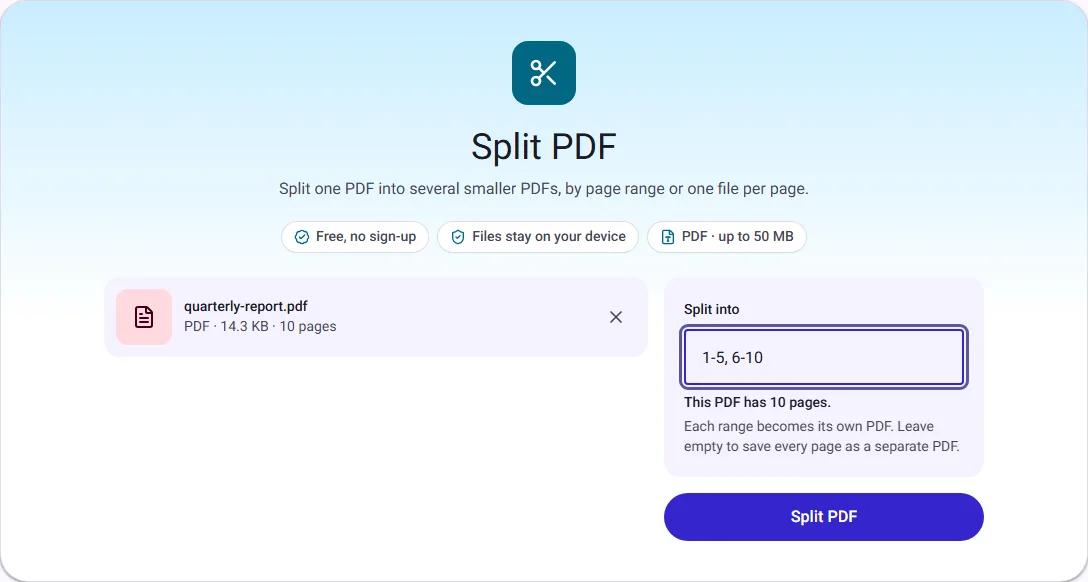
The tool checks your ranges as you type. A page number past the end of the document, or a range that runs backwards like 8-4, is explained in plain words before anything is split, so you never download a half-finished set of files.
What you get: a worked example
We split a 10-page report (14.3 KB) with the ranges 1-5, 6-10. The result was one ZIP file of 14.9 KB containing two PDFs:
- quarterly-report-pages-1-5.pdf (7.3 KB)
- quarterly-report-pages-6-10.pdf (7.3 KB)
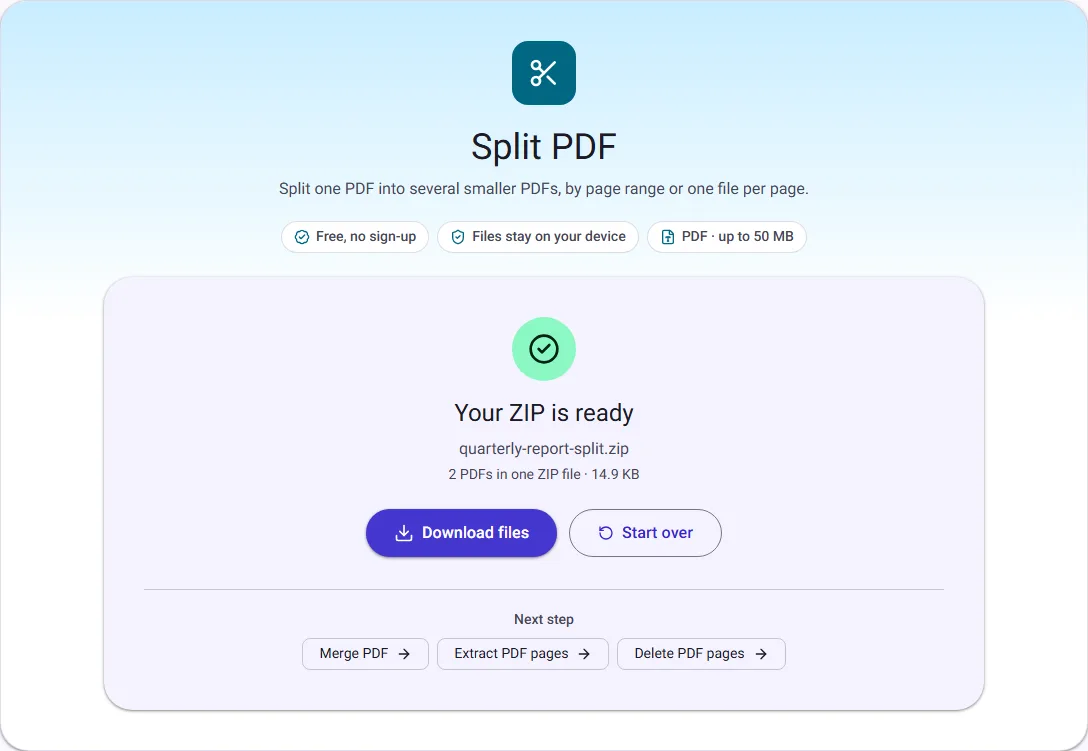
Two things are worth noticing. First, each part is a little more than half of the original, not exactly half: every PDF needs its own copy of the fonts and document structure, so parts always add up to slightly more than the whole. Second, the pages are copied without being re-compressed, so each part looks exactly like the original pages, with selectable text and the same image quality.
To open the ZIP file, double-click it on Windows or macOS, or tap it in the Files app on an iPhone or Android phone. The PDFs inside are ordinary files you can attach, upload or print.
One file per page
Leave Split into empty and every page becomes its own PDF. Our 10-page report would become ten files, named quarterly-report-page-1.pdf to quarterly-report-page-10.pdf, again delivered together in one ZIP file so you do not have to click ten download buttons.
This is handy for forms that ask for each page separately, or for a stack of single-page receipts that were scanned into one file. If you only need a few of the pages, it is quicker to pick them with Extract PDF pages than to split everything and throw most of it away.
Writing page ranges
Range syntax is the part people get wrong most often, so here are the patterns that cover nearly every case:
| You want | Type |
|---|---|
| Two halves of a 10-page file | 1-5, 6-10 |
| Chapters starting on pages 1, 12 and 30 | 1-11, 12-29, 30-45 |
| One page on its own, then the rest | 1, 2-20 |
| Every page as its own PDF | Leave the field empty |
Page numbers are the positions in the file, which can differ from the numbers printed on the pages. If your document has a cover and a contents page before "page 1", the printed page 1 may be the third page of the file. Count from the start of the file, or check the page number your PDF reader shows in its toolbar.
Split, extract or delete?
These three tools overlap, so pick the one that matches the result you want:
| You want | Use |
|---|---|
| Several files, one per range | Split PDF |
| One file with only some pages, in any order | Extract PDF pages |
| The same file without a few pages | Delete PDF pages |
Extract and Delete show thumbnails of every page, so you can click the pages you mean instead of typing numbers. That is the safer choice when you are not sure which page is which. If you want to rearrange, turn or remove pages all at once, Organize PDF lets you drag thumbnails into a new order.
Common uses
- Send one section of a long document. Split a report into chapters and attach only the one a colleague needs.
- Get under an email or upload limit. A 30 MB scan split into three parts of about 10 MB each may fit where the whole file does not. If the parts are still too big, reduce the PDF size first.
- Save statement pages separately. Bank and utility statements often need to be uploaded one month or one page at a time.
- Separate a merged scan. If several letters were scanned into one PDF, split them back into one file per letter.
Common mistakes and how to avoid them
- Typing printed page numbers. As explained above, use the position in the file. When in doubt, use Extract PDF pages and click the thumbnails.
- Overlapping ranges.
1-5, 5-10puts page 5 in both files. That is allowed, and sometimes useful, but check it is what you meant. - Forgetting that the original is unchanged. Splitting creates new files; your original PDF stays exactly as it was, so there is nothing to undo.
- Trying to split a password-protected PDF. Its pages are encrypted, so the tool asks you to remove the password first with Unlock PDF if you know it.
Putting parts back together
To combine parts again, or join them with other documents, use Merge PDF. The guide to merging PDF files explains how to get the order right, including how to interleave pages from several files by splitting first and merging second.
Questions people ask
Does splitting reduce quality? No. Pages are copied as they are, not re-rendered or re-compressed.
Will links and bookmarks still work? Bookmarks belong to the whole document and are not copied into the parts. Links to other pages may stop working if the target page ended up in a different part.
Is my PDF uploaded? No. Split PDF reads and writes the file inside your browser tab, so it never leaves your device.
How we measured
On 17 October 2026 we used our own Split PDF tool in Chrome on a 10-page sample report we generated for this guide (14.3 KB, text only, no real data). The screenshots are from that run. Sizes are the downloaded files, in KB of 1024 bytes. The first version of this guide, published on 30 September 2026, used a different 10-page test document, so its numbers differed slightly.