

"Image size" can mean three different things: the pixel dimensions (for example 4000 × 3000), the resolution used for printing (DPI, dots per inch), and the file size in KB or MB. On screens, only the pixel dimensions and the file size matter. To change the dimensions, use Resize image; to change the file size without changing the dimensions, use Compress image.
Pixel dimensions
A digital image is a grid of pixels. A photo that is 3882 pixels wide and 2912 pixels tall has about 11.3 million pixels, or 11.3 megapixels. The dimensions decide how much detail the image can hold and how large it can be shown before it looks soft.
Screens display images by pixels. A picture 800 pixels wide fills about 800 pixels of a normal screen, whatever its DPI setting says.
Resolution (DPI or PPI)
DPI is a note stored in the file that tells a printer how many pixels to place per inch of paper. It does not change the pixels themselves. The same 3000-pixel-wide photo prints 10 inches wide at 300 DPI or 20 inches wide at 150 DPI, with exactly the same file.
So when a form asks for "300 DPI", what usually matters is that the image has enough pixels for the printed size: for a 4 × 6 inch print at 300 DPI, that is 1200 × 1800 pixels.
Why phone photos are so large
Many phones take photos of 12 megapixels or more, about 4000 × 3000 pixels. That is more than twice the width of a Full HD screen, and enough for a good print of about 13 × 10 inches at 300 DPI. Most uses need far less, so phone photos are almost always safe to reduce for screens and uploads.
File size
File size is how many bytes the image takes on disk. It depends on the number of pixels, the format and the compression. Fewer pixels, or stronger compression, give a smaller file.
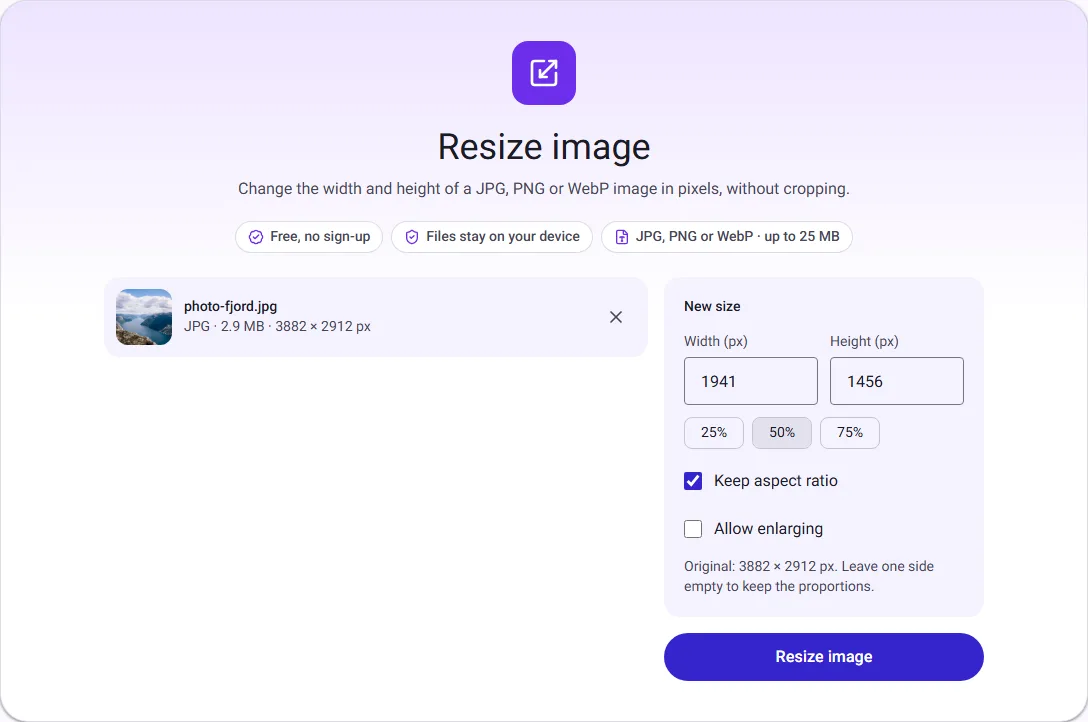
We measured this with our own tools on a public-domain photo of 3882 × 2912 pixels and 2.9 MB:
| Change | Pixels | File size |
|---|---|---|
| Original JPG | 3882 × 2912 | 2.9 MB |
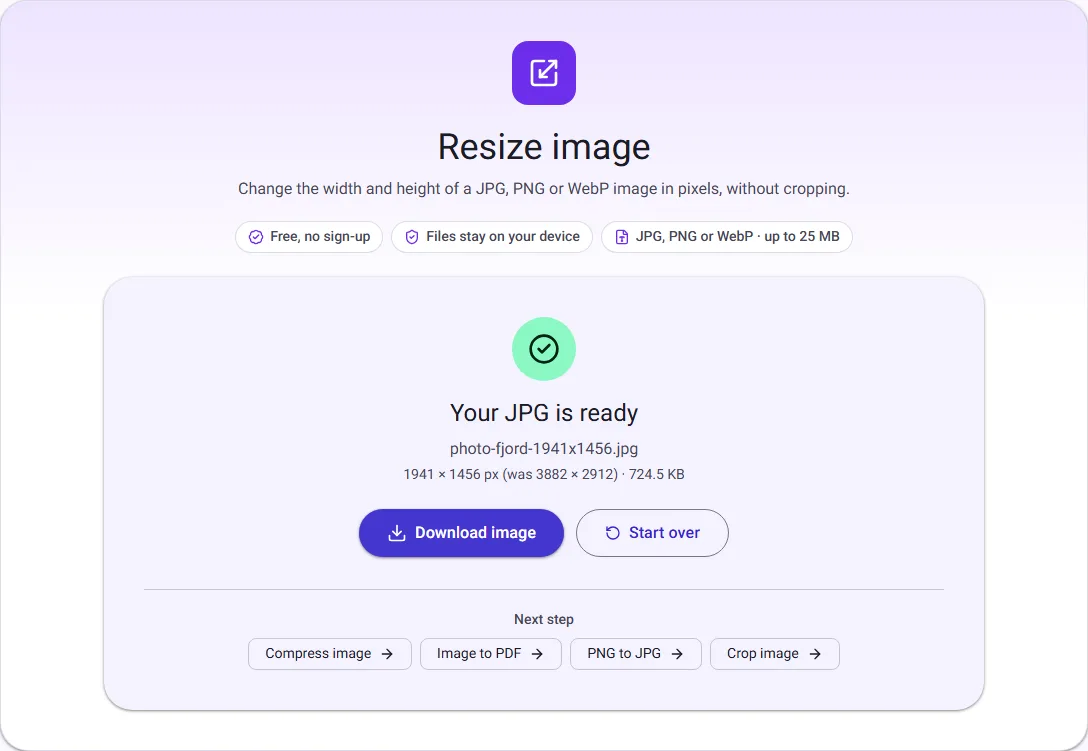
| Resized to half the width (same format) | 1941 × 1456 | 724.5 KB |
| Resized to 1600 pixels wide | 1600 × 1200 | 501.0 KB |
| Original size, compressed at quality 75 | 3882 × 2912 | 998.0 KB |
Halving the width and height leaves a quarter of the pixels, and here the file dropped to about a quarter of its size. Compressing without resizing kept every pixel and still saved about two thirds.
Pixels you need for common uses
| Use | Pixels needed (about) |
|---|---|
| 4 × 6 inch print at 300 DPI | 1200 × 1800 |
| 5 × 7 inch print at 300 DPI | 1500 × 2100 |
| A4 page at 300 DPI | 2480 × 3508 |
| Full-width image on a Full HD screen | 1920 wide |
| Photo in a blog post | 1200 to 1600 wide |
For printing, multiply the size in inches by the DPI. For screens, look at how wide the image is shown, and allow up to twice that for high-density phone and laptop screens.
Does changing the DPI change the file?
No. Changing a photo from 72 to 300 DPI in an editor, without resampling, only changes a note stored in the file. The pixels and how sharp the photo looks on screen stay the same, and the file size barely moves. Only the printed size changes.
What resizing actually does
When you make an image smaller, the resize tool works out new pixels from groups of the old ones, so edges stay smooth instead of jagged. Resize image keeps the proportions unless you choose otherwise, and never crops: if you set only the width, the height follows. To change the shape of a photo, for example to a square, crop it first with Crop image.
Common mistakes
- Changing the DPI to meet a file size limit. It does not make the file smaller; reduce the pixels instead.
- Enlarging a small photo to meet a minimum pixel size. The form may accept it, but the picture will not be any sharper.
- Saving photos as PNG. PNG keeps every pixel exactly, which makes photos several times larger than a good JPG.
- Resizing the same file again and again. Each save as JPG loses a little more detail. Always start again from the original.
Which one should you change?
- For a website or social media: reduce the pixel dimensions to what will be shown, then compress. See How to reduce image size for a website.
- For an upload form with a KB limit: reduce dimensions first, then quality, until it fits. See How to make a photo under 100 KB or 200 KB.
- For printing: keep enough pixels for the print size at around 300 DPI. Do not shrink the image; changing the DPI number alone does not add detail.
Enlarging an image adds pixels but not detail, so it gets bigger in bytes while looking soft. That is why our resize tool refuses to enlarge unless you tick "Allow enlarging".
Questions people ask
Why does my 300 DPI photo look small on screen? Screens ignore DPI. A photo shows at its pixel size, so a small number of pixels looks small whatever the DPI says.
Is a bigger file always better quality? No. A large file can come from too many pixels or from a format that suits the image poorly, such as a photo saved as PNG.
How we measured
On 30 September 2026 we used our own Resize image (Lanczos resampling, JPG saved at quality 90) and Compress image tools in Chrome on a public-domain fjord photo (CC0) from Wikimedia Commons. On 17 October 2026 we repeated the half-size resize for the screenshots and got the same 724.5 KB. The table of pixels needed is calculated, not measured. Sizes are the downloaded files, in KB and MB of 1024 bytes.
