

To get a photo under 100 KB or 200 KB, first make it smaller in pixels, then lower the quality. Most phone photos are several megabytes because they have millions of pixels; an upload form rarely needs more than 800 to 1200 pixels across. In our test, a 5.4 MB photo went under 100 KB with one resize and was comfortably under it after compression. Use Resize image, then Compress image.
Step 1: check what the form asks for
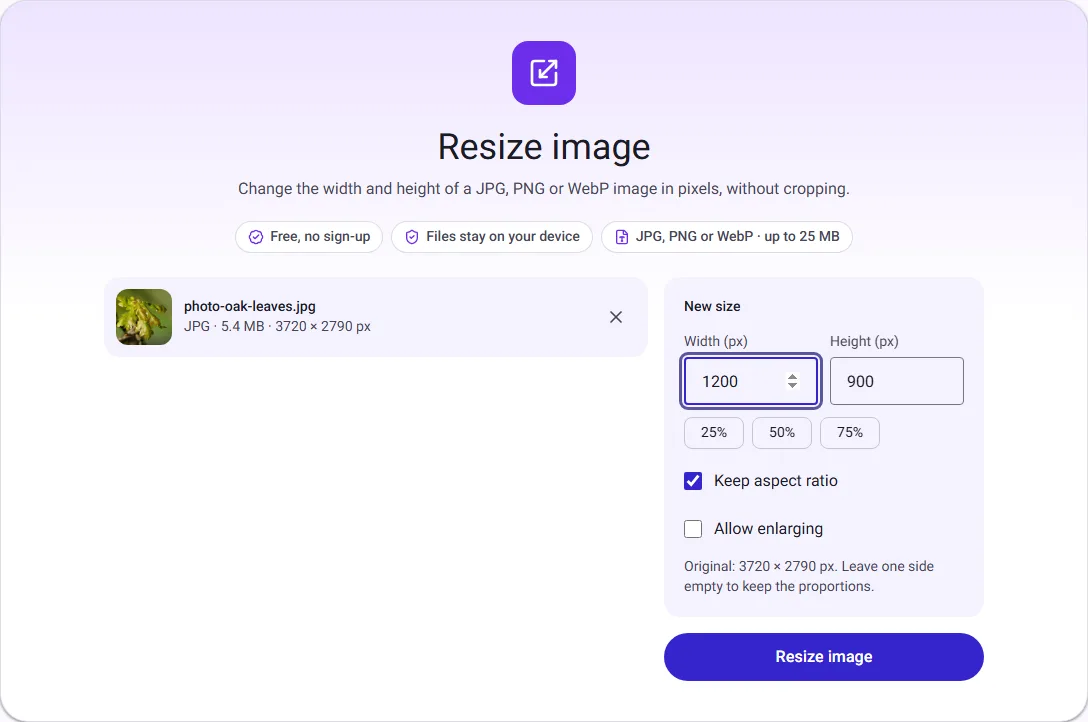
Read the requirements before you start. Forms often state a file size limit (for example "maximum 100 KB"), sometimes pixel dimensions ("600 × 600 pixels") and sometimes a format ("JPG only"). If dimensions are given, resize to exactly those; the file size usually follows.
Step 2: resize
If no dimensions are given, 1200 pixels on the longest side is a safe starting point for documents and profile pictures, and 800 pixels for small thumbnails.
We started with a detailed public-domain photo of oak leaves: 3720 × 2790 pixels, 5.4 MB.
| Resized to | File size |
|---|---|
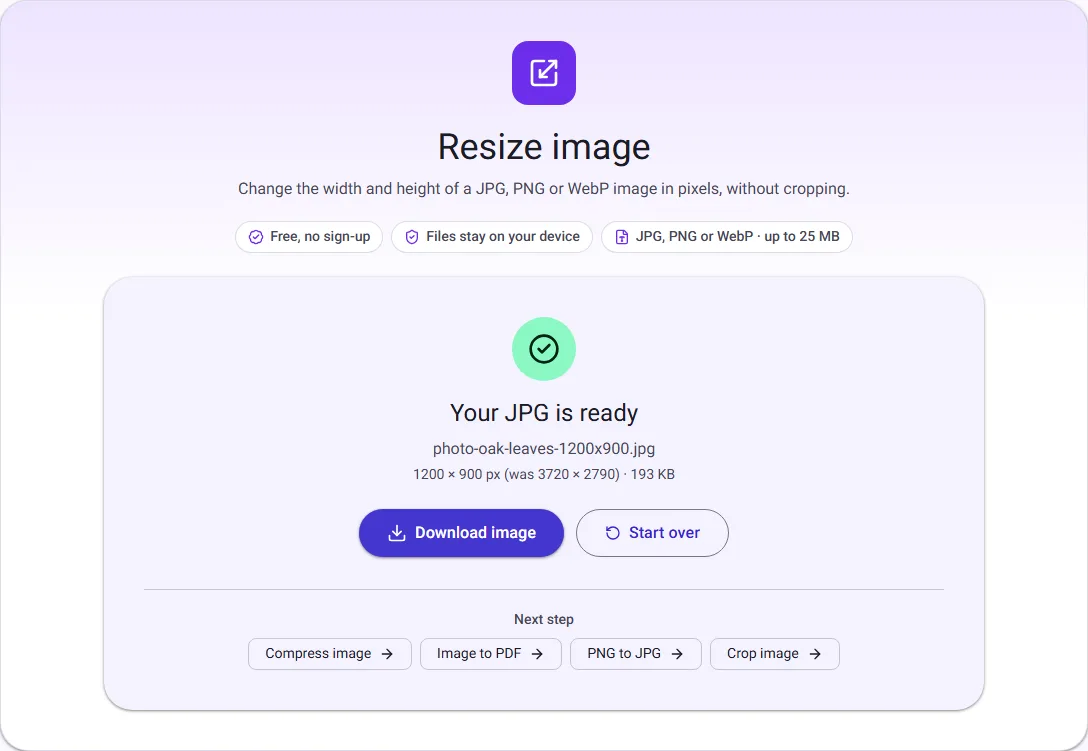
| 1200 × 900 pixels | 193.0 KB |
| 800 × 600 pixels | 97.2 KB |
Resizing alone brought it under 200 KB at 1200 pixels, and just under 100 KB at 800 pixels.
Step 3: compress if it is still too big
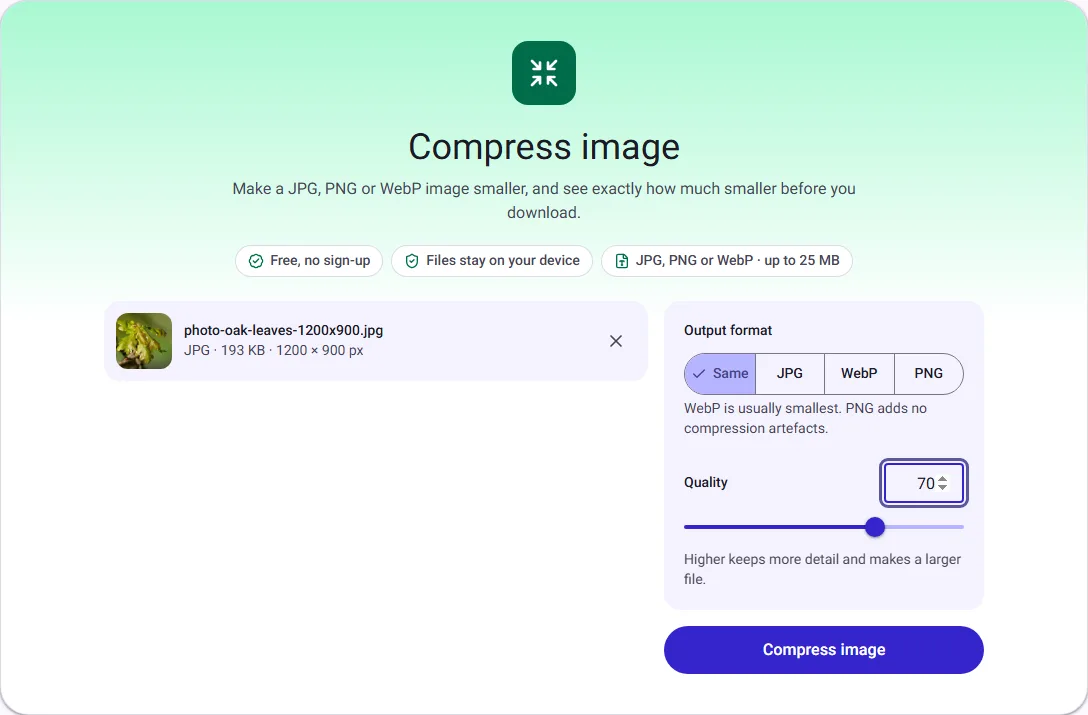
If the file is still over the limit, lower the quality with Compress image. Keep the format as JPG, which forms accept almost everywhere.
| Starting from | Quality | File size |
|---|---|---|
| 1200 × 900 | 70 | 63.8 KB |
| 1200 × 900 | 50 | 42.1 KB |
| 800 × 600 | 70 | 33.0 KB |
| 800 × 600 | 60 | 26.6 KB |
So for a 100 KB limit, 1200 pixels at quality 70 fits with room to spare, and keeps more detail than a smaller image. For 200 KB, the resized image alone was enough.
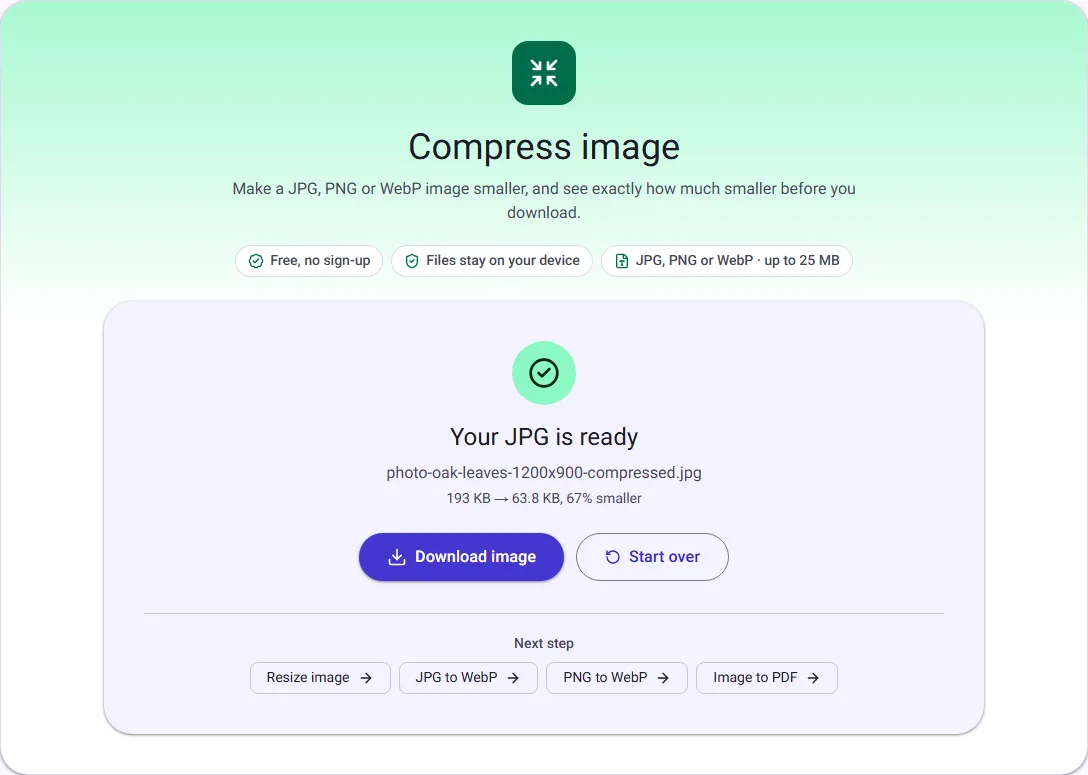
Every photo compresses differently: a photo with lots of fine texture needs more bytes than a plain background. The tools show the real size before you download, so you can adjust and try again.
When a form also sets a minimum size
Some forms set both a lower and an upper limit, for example "between 20 KB and 50 KB". If your file is now too small, you went further than needed: raise the quality a step, or resize to a few more pixels, and check again. A file just inside the range with a clear picture is the goal, not the smallest possible file.
Example: a square photo of 600 × 600 pixels
Many application forms ask for a square photo with exact pixels and a size limit. Do it in this order:
- Crop the photo to a square with Crop image, using the square preset, with your face in the middle and a little space above your head.
- Resize the square to 600 × 600 pixels with Resize image.
- If it is still over the limit, compress it as JPG, starting at quality 80 and lowering it a step at a time.
Cropping first matters: if you resize a rectangular photo to 600 × 600 without cropping, it gets stretched or squashed.
Signatures and small scans
Forms often ask for a separate signature image with a tiny size limit. Sign on plain white paper with a dark pen, photograph it in good light, then:
- Cut away everything except the signature with Crop image, leaving a small margin.
- Resize to the dimensions the form asks for, or to about 400 pixels wide if it does not say.
- Compress as JPG. Signatures are mostly white space, so they usually fit easily.
How to check if a photo is under 100 KB
- On Windows: right-click the file and choose Properties. "Size" shows the file size, for example 63.8 KB.
- On a Mac: select the file and press Command + I. A Mac counts 1 KB as 1,000 bytes, so it shows a slightly larger number than Windows for the same file.
- On a phone: open the photo's details or info screen in your gallery or Files app.
- In our tools: the result shows the size before you download, in the same KB that Windows uses.
Forms rarely say whether 1 KB means 1,024 or 1,000 bytes. If your file is very close to the limit, such as 99 KB, go a little lower so it passes either way.
Check the result before you upload
Open the final file at full size. A face should be sharp around the eyes, and small text on a scanned document should still be readable. Upload forms usually check only the size and format; a person reads the image later, so clarity matters more than saving a few extra kilobytes.
Tips for forms
- Do not go lower than you need. A 60 KB photo that is clear is better than a 20 KB one that is blurry.
- Faces and documents need detail. For ID photos and scanned documents, reduce pixels only as far as the form allows, then compress gently.
- Keep the original. Resizing and compression discard detail. Work on a copy.
- Check the format. If the form only accepts JPG and your file is PNG or WebP, choose JPG as the output format in Compress image.
Questions people ask
Do I need to change the DPI to make the file smaller? No. DPI is a note in the file for printing; changing it does not change the pixels, and the file size barely moves. When a form asks for a DPI value as well as a size limit, what usually matters is that the photo has enough pixels for its use.
Why is my file still over the limit after compressing? The image probably still has too many pixels. Resize it first, then compress; lowering the quality alone has much less effect on a large photo.
Can I do this on my phone? Yes. Both tools work in the browser on phones, and very large photos may take a few seconds longer than on a computer.
Is my photo uploaded? No. Resize image and Compress image work inside your browser tab and your photo never leaves your device.
How we measured
On 30 September 2026 we used our own Resize image (Lanczos resampling, saved as JPG quality 90) and then Compress image in Chrome on a public-domain photo from Wikimedia Commons: new oak leaves with female flowers (CC0). On 17 October 2026 we repeated the 1200-pixel resize and the quality 70 compression for the screenshots and got the same sizes. Sizes are the downloaded files, in KB and MB of 1024 bytes.
