

Use JPG for photos and PNG for screenshots, logos and anything with transparency or sharp text. JPG makes photos small by discarding detail you are unlikely to notice; PNG keeps every pixel, which suits flat colours and edges but makes photos large. If you already have the wrong format, you can switch with PNG to JPG or JPG to PNG.
The choice matters more than it looks. The wrong format can make a photo five times larger than it needs to be, blur the text in a screenshot, or turn a transparent logo into a white box. Below are real conversions made with our own tools, with screenshots, so you can see each of those effects and avoid them.
The short answer
| JPG (JPEG) | PNG | |
|---|---|---|
| Best for | Photos, scans with many colours | Screenshots, logos, icons, diagrams, text |
| Compression | Lossy: some detail is discarded | Keeps every pixel exactly |
| Transparency | No | Yes |
| Typical photo size | Small | Several times larger |
| Re-saving | Loses a little more each time | No loss from re-saving |
How the two formats work
A JPG splits the picture into small blocks and keeps the broad shapes and colours of each block while simplifying fine variations. Photos are full of tiny, random variation that the eye does not track, so a JPG can be a fraction of the size while looking the same. The price shows up on hard edges: around text and thin lines, JPG leaves faint smudges, often called artefacts.
A PNG stores every pixel exactly and squeezes the file by spotting repetition, like a large area of one colour or a repeated pattern. Screenshots, logos and diagrams are full of repetition, so they compress well. Photos have very little exact repetition, so a photo saved as PNG stays large.
JPG vs PNG in real numbers
We converted three public-domain images with our own tools to see what the choice does in practice.
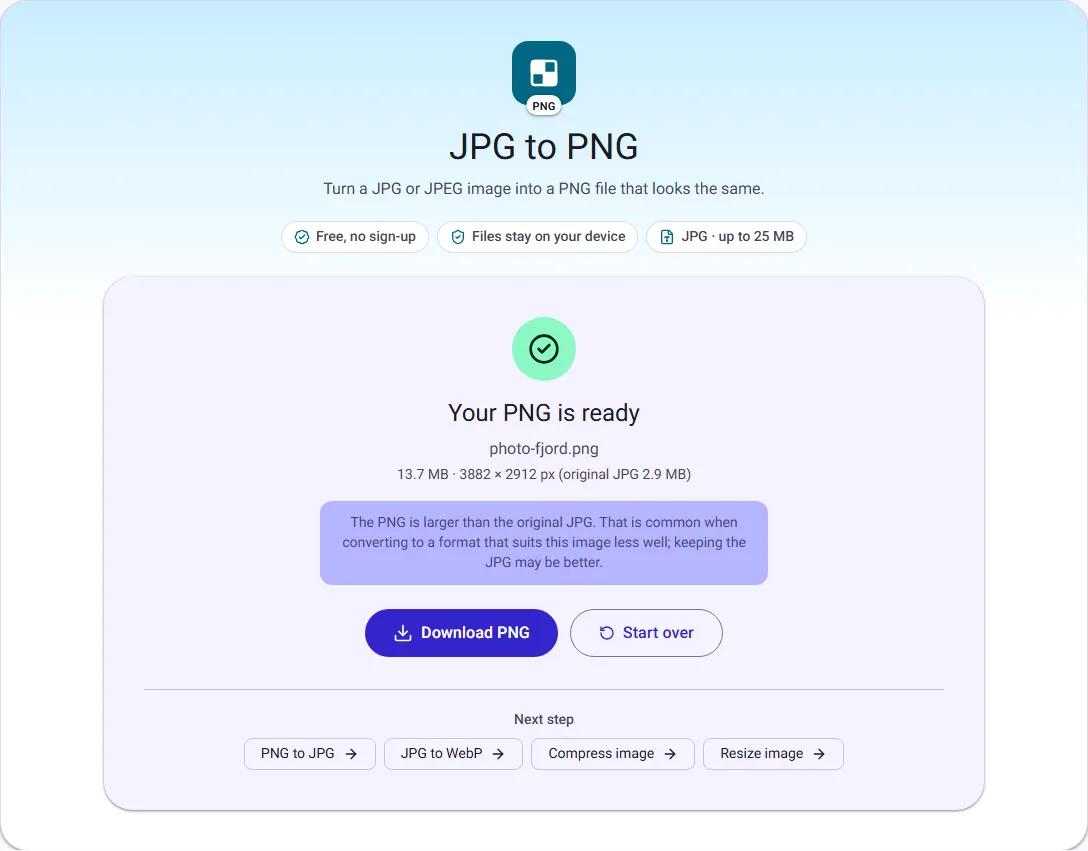
A phone-style photo (a fjord landscape, 3882 × 2912 pixels, 2.9 MB as a JPG). Converted to PNG, it became 13.7 MB, almost five times larger, and it looks the same, because a PNG cannot restore detail the JPG already discarded. Our tool says so on the result card rather than leaving you to discover it.
A screenshot of a simple web page (1315 × 663 pixels, 20.9 KB as a PNG). As a JPG at quality 85 it was 18.8 KB, only slightly smaller, and JPG compression softens the edges of text. For screenshots, PNG is usually the better trade.
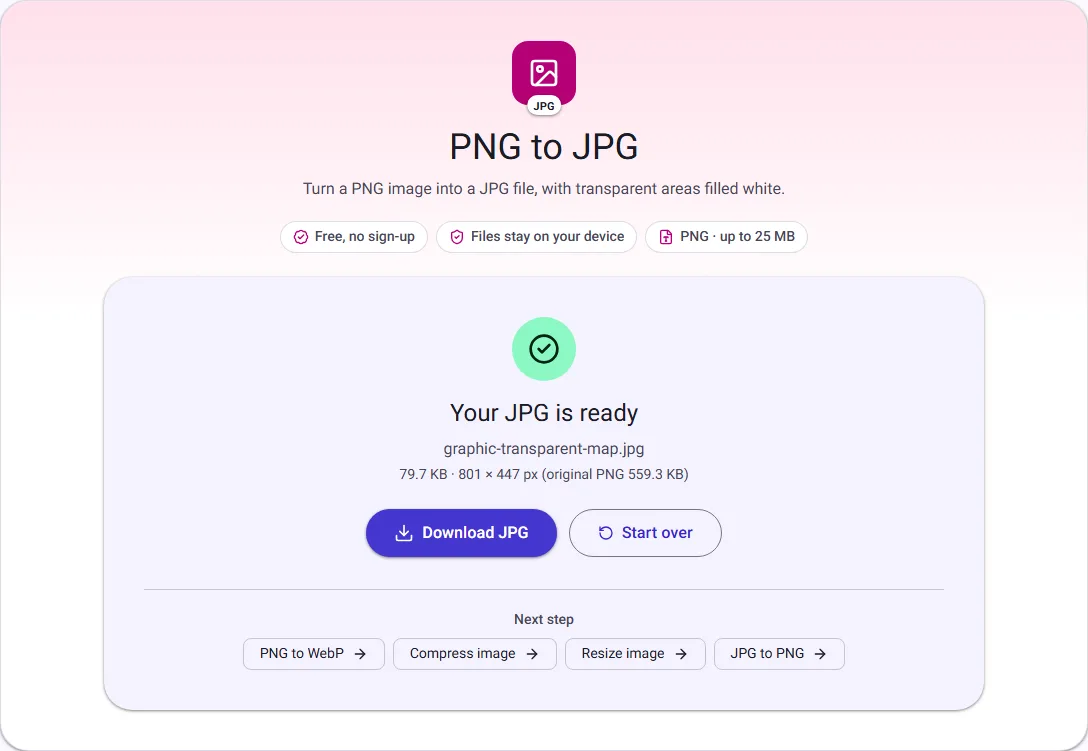
A map with a transparent background (801 × 447 pixels, 559.3 KB as a PNG). As a JPG it shrank to 79.7 KB, but the transparent background became solid white, because JPG cannot store transparency.
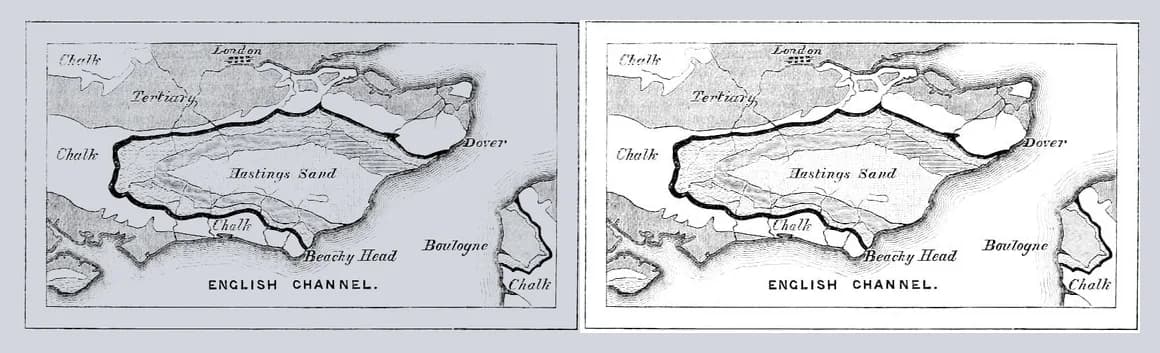
The pattern holds for most images: photos belong in JPG, while graphics with text or transparency belong in PNG.
When to choose JPG
- Photos from a phone or camera, and scanned photos.
- Images for email or upload forms that limit file size.
- Anywhere a small file matters more than pixel-perfect edges.
Keep an eye on quality. At the default quality of 85 in our converter, most people cannot tell a photo from the original, but every save as JPG discards a little more. Keep your original if you plan to edit the picture again.
When to choose PNG
- Screenshots, especially ones with text or user-interface elements.
- Logos, icons and graphics with flat colours.
- Any image that needs a transparent background.
- Working copies you will edit and save many times.
Common mistakes
- Saving photos as PNG "for quality". It does not add quality the photo never had; it only makes the file larger, as the 13.7 MB example shows.
- Converting a logo to JPG for a smaller file. Its transparent background turns white, which looks wrong on any coloured background. Keep logos as PNG, or try WebP.
- Re-saving a JPG again and again. Each save adds a little more blur. Edit from the original, and save as JPG once at the end.
- Sending a screenshot of a document as JPG. Small text becomes harder to read. Keep screenshots as PNG, or turn them into a PDF with Image to PDF.
What about WebP, AVIF and HEIC?
JPG and PNG are not the only choices any more, and you will meet the newer formats sooner or later:
- WebP handles both photos and transparency, and is often smaller than JPG and PNG for the same look. Every current browser shows it, but some older apps and upload forms still refuse it. What is WebP? explains when that matters.
- AVIF is newer still and can be smaller than WebP, but support in editing apps is patchy, so it is mainly a format for websites.
- HEIC is the format iPhones use for photos by default. It keeps photos small on the phone, but many websites and Windows programs do not accept it, which is why iPhones often convert it to JPG when you share or upload a photo.
For sending, uploading and printing, JPG and PNG remain the safe pair: everything opens them.
Converting between them
- PNG to JPG: transparent areas are filled with white, because JPG has no transparency. Use it for photos that were saved as PNG by a screenshot tool or editor. Convert PNG to JPG.
- JPG to PNG: the picture stays exactly as it looks now, rotation included, and later edits will not add compression damage. Expect a much larger file. Convert JPG to PNG.
If size is the real problem rather than format, Compress image lets you try different qualities and shows the before and after size. And if you publish images on a website, WebP often gives smaller files than both; the guide to reducing image size for a website compares them.
Questions people ask
Is JPEG different from JPG? No. They are two spellings of the same format; .jpg became common because MS-DOS and early Windows limited file extensions to three letters.
Which is smaller, PNG or JPG? For photos, JPG, by a wide margin: our 2.9 MB JPG photo became 13.7 MB as a PNG. For simple screenshots and logos with few colours, PNG can be as small or smaller, and it keeps text sharp.
Which is better for printing? For photos, a high-quality JPG prints just as well as a PNG. For logos and line art, PNG keeps edges crisp.
Are my images uploaded when I convert? No. Our converters work inside your browser tab and your images never leave your device.
How we measured
On 30 September 2026 we ran our own tools in Chrome on public-domain sample images from Wikimedia Commons: a fjord photo (CC0), a screenshot of example.com (CC0) and a geological map with a transparent background (public domain). On 17 October 2026 we repeated the photo and map conversions for the screenshots and got the same sizes. Sizes are the downloaded files, in KB and MB of 1024 bytes. Your own images will give different numbers; the tools show them before you download.


