

To fill out a PDF form online, open it in a form filler, type into its fill-in fields, tick the boxes and save a new copy. Fill PDF form does this in your browser and lists every field you can fill as an ordinary box. Nothing is uploaded. That works when the form has real fill-in fields. Many PDF forms do not: they are scans or printouts with lines on a page. This guide shows how to tell which kind you have and what to do with each.
Does your PDF form have fill-in fields?
There are three kinds of PDF form, and each needs a different approach:
- A fillable form. It has fields built in: click on a line in your browser's PDF viewer and a cursor appears, or the boxes are highlighted. Most application, registration and HR forms made on a computer are like this.
- A flat form. It was scanned or printed to PDF, so the boxes are only drawn on the page. Clicking does nothing, and some can't even be selected as text.
- An XFA form. Some government and tax forms use an older Adobe format. In most viewers other than Adobe Acrobat Reader, they open on a page that says "Please wait..." and that your viewer may not be able to show the document.
The quickest test is to drop the file into Fill PDF form. If it lists fields, the form is fillable. If not, it tells you so straight away. The section on forms without boxes below covers the other two kinds.
How to fill out a PDF form, step by step
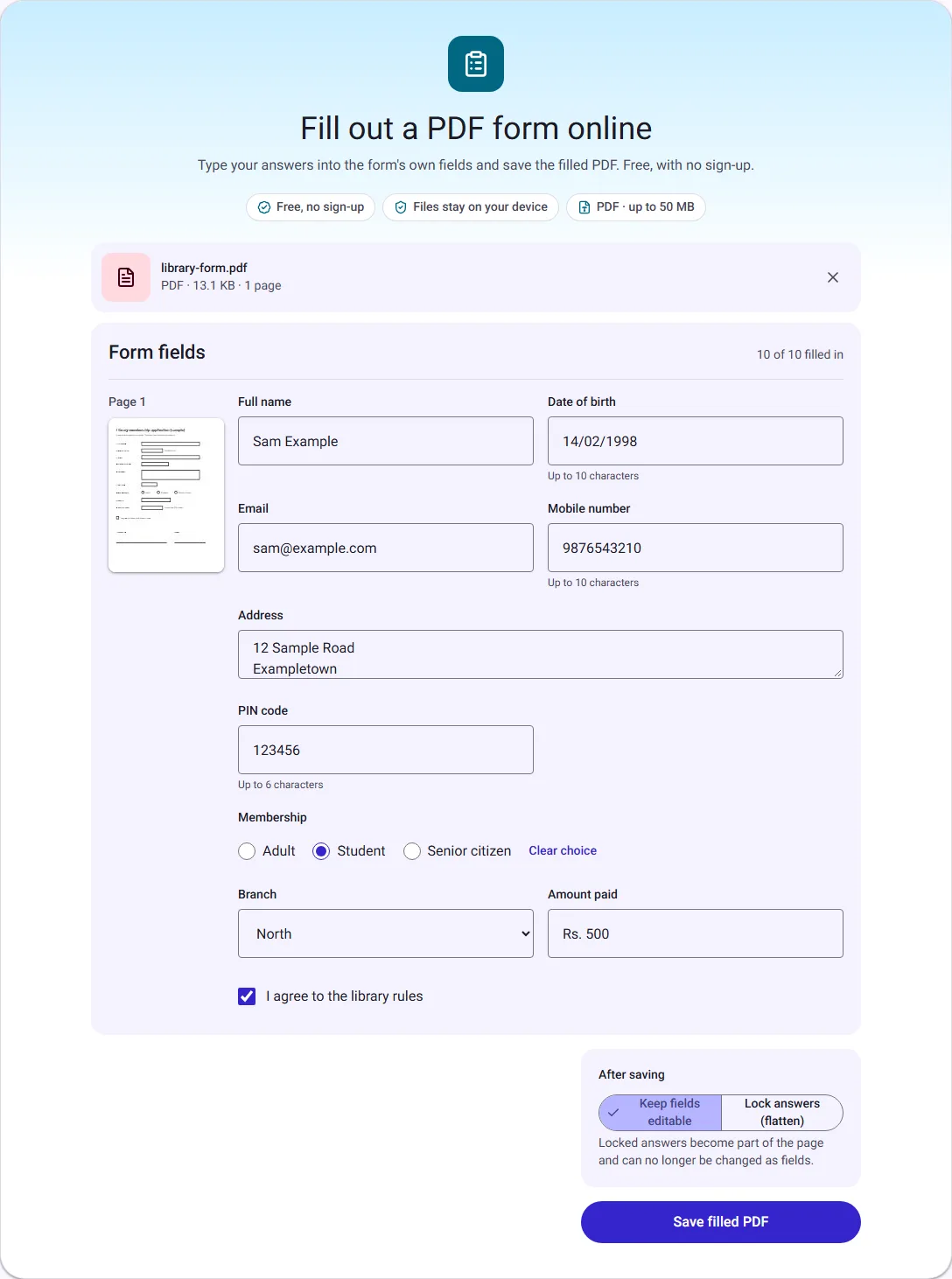
- Open Fill PDF form and choose your PDF. Its fields appear in reading order, grouped by page, with a small preview of each page beside them on a computer.
- Type your answers, tick the boxes and pick from the lists. A counter at the top shows how many fields are filled in.
- Under After saving, choose Keep fields editable or Lock answers (flatten). The difference is explained below.
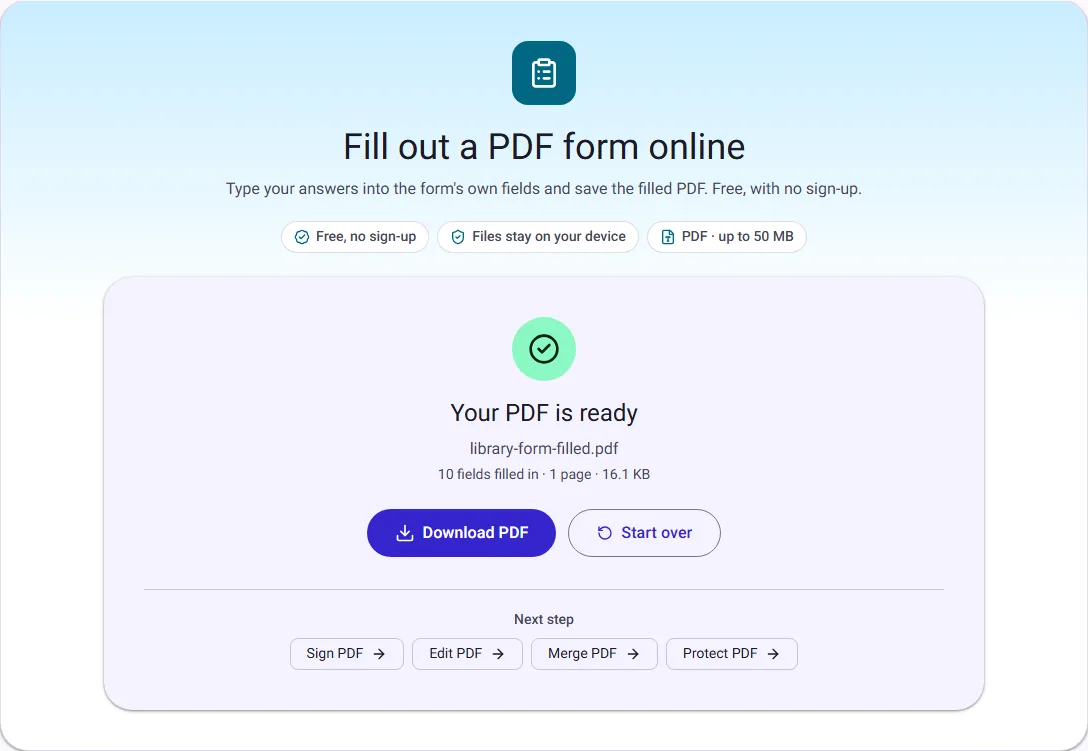
- Select Save filled PDF, then Download PDF, and open the file to check it.
We made a one-page sample library membership form with ten fields: text boxes, a two-line address, a choice of membership, a branch list and an "I agree" tick box. This is it filled in:
Try it with our sample form
To practise before you fill in a real form, download our sample form (13.1 KB, one page, ten fill-in fields) and open it in Fill PDF form. The library, names and numbers on it are made up, so type anything you like. Things worth trying on it:
- Type a seventh digit into PIN code. The box stops at six.
- Type ₹500 into Amount paid and save, to see the message described below.
- Save it once with the fields editable and once locked, then open both copies in PDF to text and compare what it finds.
- Open the editable copy in Fill PDF form again. Your answers are still in the boxes.
There is also the same form without fill-in fields (2.4 KB), drawn like a scan, to see what happens with a flat form.
Field names, character limits and date formats
The names shown above each box come from the form itself. A well-made form says "Full name"; a hurried one may say "Text12". If a name doesn't tell you what goes there, look at the page preview, or open the PDF in another tab and match the box by its position. On a phone the preview is not shown, so keep the PDF open beside the tool.
Some fields have a character limit, such as six digits for a PIN code. The tool shows "Up to 6 characters" under the box and stops you typing more, so you find out now rather than when the form is checked.
A form may also expect a date format, often printed next to the box, such as DD/MM/YYYY on our sample. The tool doesn't check dates or do sums. Some forms add up totals or format dates by themselves in Adobe Reader, and that doesn't happen here, so type totals and dates exactly as the form asks.
The rupee sign and names in other scripts
PDF form fields show their answers with a standard font that covers English and other Western European letters only. The rupee sign (₹) isn't in it, and neither are Hindi, Tamil, Arabic or Chinese letters. The font has no way to draw them, so instead of saving a form with gaps in it, our tool stops and tells you which field is the problem. When we typed ₹500 into the fee box:

Writing Rs. 500 or INR 500 fixed it. If you need your name in another script, leave that field empty and add the text on top of the page with Edit PDF. It draws other scripts with your device's own fonts, so they appear exactly where you put them.
Keep the answers editable, or lock them?
With Keep fields editable, your answers stay in the form's fields. You, or the person you send it to, can still change them in any app that fills forms. With Lock answers (flatten), the answers become part of the page, like printed text, and the fields are removed.
We saved our filled form both ways, then checked each file: we counted the fields left, and ran it through our PDF to text tool, which reads the text on the pages.
| Keep fields editable | Lock answers (flatten) | |
|---|---|---|
| File size (form was 13.1 KB) | 16.1 KB | 15.8 KB |
| Fill-in fields left in the file | 10 | 0 |
| Words PDF to text read from the page | 52, none of the answers | 65, including every typed answer |
| Answers can be changed later | Yes | No, they are part of the page |
The third row is the one to remember. In an editable form, the answers are stored in the fields, not in the page's text. A program that reads only the page text, as our PDF to text does, sees an empty form. After locking, the answers are ordinary page text that every viewer, printer and text reader picks up.
So lock the answers when the form is finished and going to someone else, especially if it will be printed, merged with other documents or read by a system. Keep fields editable when you are filling it in stages, or the other person needs to complete or correct it. Keep an editable copy for yourself either way, because locked answers can't be turned back into fields.
This is the locked form, page 1:
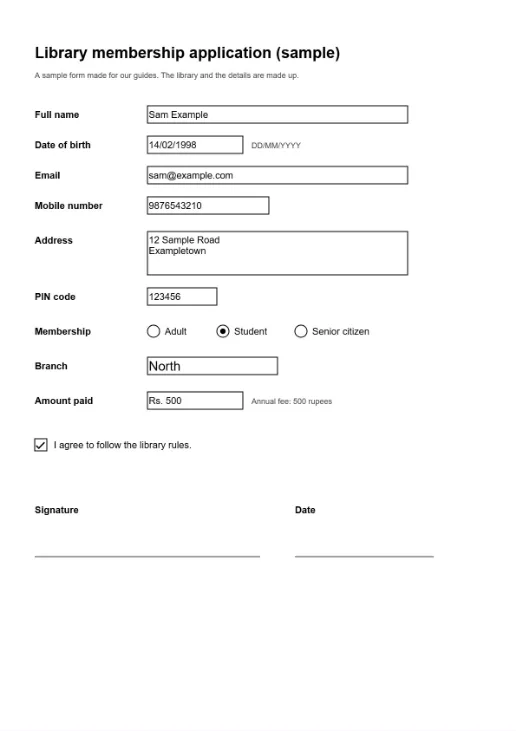
If you already filled a form in another app and only want to lock it, Flatten PDF does just that step.
When the form has no fill-in boxes
We also made a copy of the same form with the boxes only drawn on the page, as a scan would be. Fill PDF form says so and offers the next step:
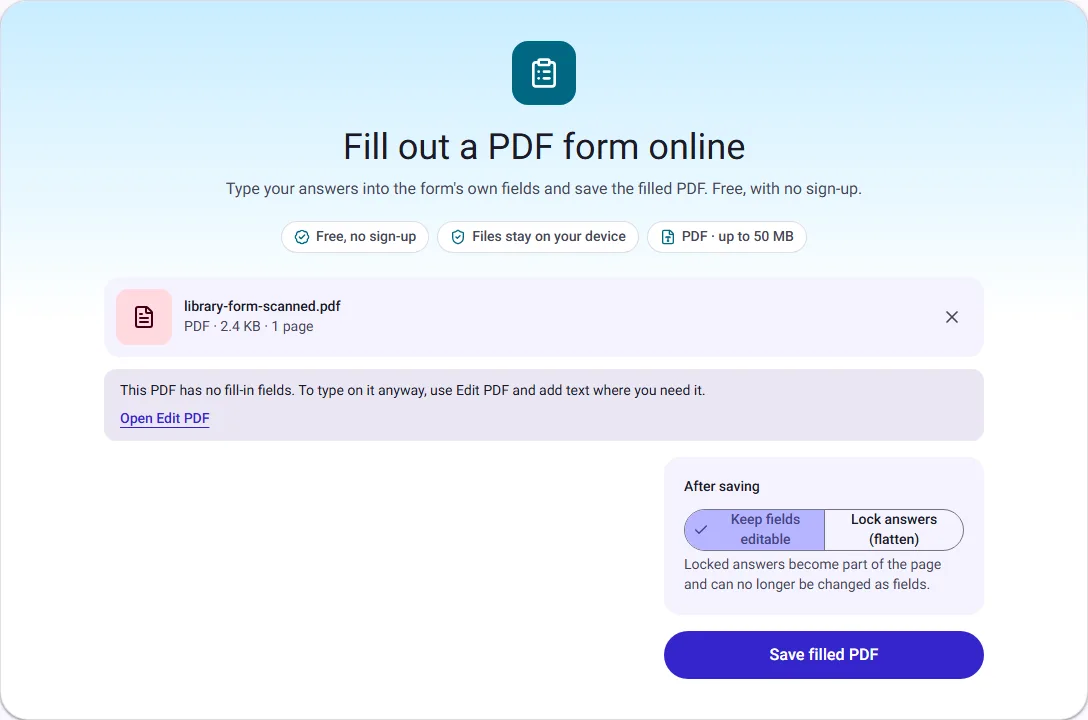
For a flat form, open it in Edit PDF, add a text box for each answer and drag it onto its line. Add a picture the same way if the form has a box for a photo. It takes longer than a fillable form, but the result prints cleanly. If the form must be handwritten, print it, fill it in by hand, then turn photos of the pages into a PDF.
For an XFA form, use the free Adobe Acrobat Reader on a computer, which is what those forms are made for.
Signing and sending the filled form
- Fill first, then sign. Save the filled form, then add your signature with Sign PDF. If you lock the answers before signing, they can no longer be changed as form fields once your signature is on the page. Our guide to signing a PDF explains what kind of signature that is.
- Check the file you will send. Open the downloaded PDF in your usual viewer and read every answer. The saved file is named after the original with "-filled" added, so rename it if the sender asked for a particular name.
- Protect personal details. Application forms often hold your date of birth, address and ID numbers. Before emailing one, you can password protect the PDF and send the password separately.
- One file for everything. If the form must go with other documents, join them with Merge PDF.
Questions people ask
Can I save a form halfway and finish it later? Yes. Keep the fields editable and download it. When you open that file in Fill PDF form again, your earlier answers are already in the boxes.
Why can't I change some fields? The form marks them as locked, for example a reference number the sender filled in. They are shown with a lock and left as they are.
Can I fill out a PDF form on my phone? Yes. Each field is a full-width box, which is easier on a small screen than zooming into lines on the page.
Is my form uploaded? No. The form is read and saved inside your browser tab, and your answers go nowhere else.
How we measured
On 24 October 2026 we made a one-page sample library membership form with ten fill-in fields and invented details (13.1 KB), and a copy with the boxes only drawn on the page (2.4 KB). Both can be downloaded from this guide. We filled the form with our own Fill PDF form tool in Chrome and saved it once with the fields kept editable and once with the answers locked. Then we counted the fields left in each file and read each one with PDF to text. The sizes, word counts and messages are the ones the tools showed, and the screenshots come from that run. Sizes are in KB of 1024 bytes.